
Webflow Custom Domain Email: How to Add a Mailbox to Your Site
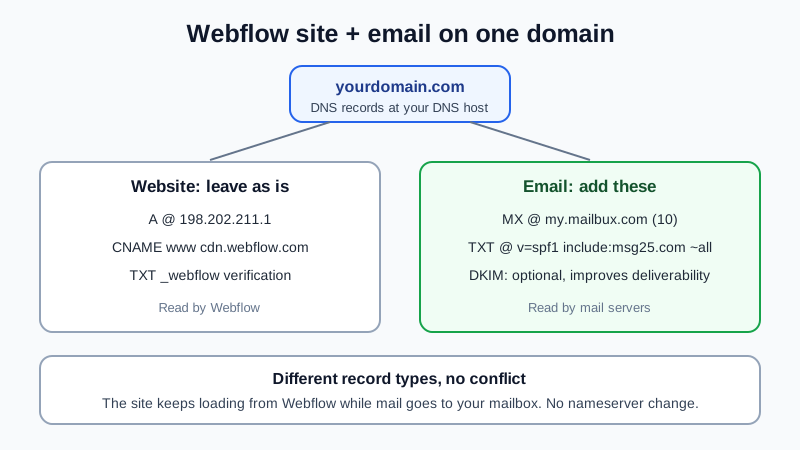
Webflow hosts your website, not your email. Its help center says plainly: "Webflow doesn't provide email hosting services." To get an address like anna@yourdomain.com for a Webflow site, add two records where your domain's DNS is managed: an MX record that points mail to an email host, and an SPF record that lets that host send for you. Webflow's A, CNAME and TXT records stay as they are, so the site keeps running while you add mail. The mailbox itself can be free. Setup takes about 20 minutes plus DNS waiting time.
The Webflow facts below come from Webflow's own help center, checked on 12 November 2026.
How a Webflow site and email share one domain
A domain holds different kinds of DNS records, and each service reads only its own. Webflow uses the address records for the site; mail uses MX and TXT. They never collide, which is why you do not need to move nameservers or touch the site to add email:
| Record | Host / Name | Value | Used for |
|---|---|---|---|
| A | @ | 198.202.211.1 | Webflow site (root domain) |
| CNAME | www | cdn.webflow.com | Webflow site (www) |
| TXT | _webflow | one-time-verification=… (from Webflow) | Webflow domain check |
| MX | @ | my.mailbux.com, priority 10 | Incoming mail (required) |
| TXT | @ | v=spf1 include:msg25.com ~all | SPF for sent mail (required) |
| TXT | as shown in Mailbux | DKIM key from Mailbux | Optional, improves deliverability |
The Webflow values are the current ones from Webflow's "Manually connect a custom domain" article; your own copy is under Site settings → Publishing → Production. Older sites may still show legacy records, which Webflow asks you to replace.
Step 1: Find where your domain's DNS is managed
Webflow is not where you add mail records in most cases. Webflow's help center says Webflow isn't a domain registrar. Work out which of these fits you:
- Domain bought at a registrar and connected to Webflow by hand. The DNS records are at that registrar. Registrar guides: GoDaddy, Namecheap, Squarespace, Hostinger.
- Domain bought through Webflow. Webflow says these domains are purchased from IONOS, and you sign in to or create an IONOS account during checkout. Look for the domain's DNS records in that account.
- DNS at Cloudflare. Add the records in the Cloudflare dashboard. See free email for a Cloudflare domain.
Not sure? Run nslookup -type=NS yourdomain.com. The nameservers in the answer belong to the company whose DNS screen you need.
Step 2: Create the mailboxes first
- Sign up at dash.mailbux.com. New accounts start in the onboarding wizard.
- Open Services, then your plan, then Manage, then Domains, choose Add domain and enter the domain your Webflow site uses.
- Under Manage → Mailboxes, create the addresses you need, for example hello@ and your own name.
- Open Domains → Open DNS setup and keep the tab open. Each record has a copy button.
Creating mailboxes before touching DNS means the first message that arrives has somewhere to land.
Step 3: Add the MX record
- In your DNS host, open the DNS records for the domain.
- Look at existing MX rows. A domain delivers mail to one provider only, so remove MX rows of a service you no longer use (for example a registrar's forwarding or a trial mailbox). If you still receive mail there, copy it first.
- Add a record: type MX, host @ (some hosts want the field blank), value my.mailbux.com, priority 10.
- Save. Leave the A record, the www CNAME and the _webflow TXT record alone.
Step 4: Add the SPF record
Add a TXT record with host @ and the value v=spf1 include:msg25.com ~all. A domain should have only one SPF record. If a line starting with v=spf1 already exists, for example from a newsletter tool, add include:msg25.com to it instead of creating a second one. How to merge SPF records shows the result. The _webflow TXT record is separate and is not an SPF record, so keep it.
Step 5 (optional): DKIM and DMARC
DKIM is optional and improves deliverability. Copy the DKIM TXT record from Domains → Open DNS setup and add it with the host name Mailbux shows. DMARC is a TXT record on _dmarc; start with a monitoring policy and tighten it once reports look clean.
Step 6: Test it
- Wait for DNS to update; most changes show within an hour, some take longer.
- In Mailbux, Domains → Open DNS setup checks the records; choose Re-check now after editing.
- Send a message from a personal address to your new mailbox, then reply from Mailbux webmail. In the received reply's headers you should see
spf=pass. - Open your Webflow site to confirm it still loads. It will, because no site record changed.
Webflow mistakes that break email
- Deleting too much when reconnecting the site. Webflow's reset steps tell you to remove the A records on the root domain and the CNAME records on www (and on any other subdomain you connect). That is all. MX and SPF records are not part of it; keep them.
- Updating legacy records. If Webflow asks you to move from the old records (A records 75.2.70.75 and 99.83.190.102, CNAME proxy-ssl.webflow.com) to the new 198.202.211.1 and cdn.webflow.com, edit only those rows.
- Changing nameservers for the site. Webflow says its hosting doesn't need custom nameservers. Moving nameservers moves your whole DNS zone, so mail records must be re-created at the new DNS host or mail stops.
- Cloudflare proxy. For standard Webflow hosting, Webflow asks for the A and www CNAME records to be set to DNS only. MX records cannot be proxied anyway, so mail is not affected by that switch.
- Mail records on www. www belongs to the site. Mail records go on the root domain.
Want the reasoning behind "change mail, keep the site"? Email without changing nameservers explains it, and custom domain email without a website covers domains with no site at all.
What the free plan gives you
The Mailbux Free plan is free forever: 7 GB of shared storage, 1 domain, webmail, the Mailbux apps and SMTP sending, and outgoing mail carries a small "Sent via Mailbux" footer. The Free plan includes up to 7 business mailboxes. On Free you read and send in Mailbux webmail and the Mailbux apps; standard IMAP and POP3 access for clients like Outlook or Apple Mail is available on paid plans. Not sure whether you need a full mailbox or just a forward to your personal inbox? Read email forwarding vs email hosting. For the wider picture, see our guide to a free business email account.
Frequently Asked Questions
Does Webflow include email with a site plan?
No. Webflow's help center says Webflow doesn't provide email hosting services. You keep your current email host or set up a new one with any email provider.
Will adding MX records break my Webflow site?
No. The site uses the A record on the root domain and the CNAME on www. Mail uses MX and TXT records, so adding them does not change how the site loads.
I bought my domain through Webflow. Where do I add MX records?
Webflow says domains bought through Webflow are purchased from IONOS, with an IONOS account created or used at checkout. The domain's DNS records are managed there.
Can I use any email provider with a Webflow domain?
Yes. Webflow does not limit which email host you use. You add that host's MX and SPF records at your DNS host.
Does the free mailbox add anything to my emails?
Yes. Outgoing mail on the Mailbux Free plan carries a small "Sent via Mailbux" footer.
Sources: Webflow help center articles "Webflow hosting overview", "Manually connect a custom domain", "How do I manually migrate my DNS records?", "Buy a custom domain through Webflow", "Connect your Cloudflare domain to Webflow" and the custom domain troubleshooting article (help.webflow.com), checked 12 November 2026.
Email that matches your site
With Mailbux you get mailboxes on the same domain as your Webflow site, DNS values with copy buttons under Domains → Open DNS setup, DKIM signing, two-factor sign-in and app passwords, plus webmail and the Mailbux apps. Compare the plans and start with the one that fits.