
Multiple SPF Records? How to Merge Them Into One (and Fix SPF PermError)
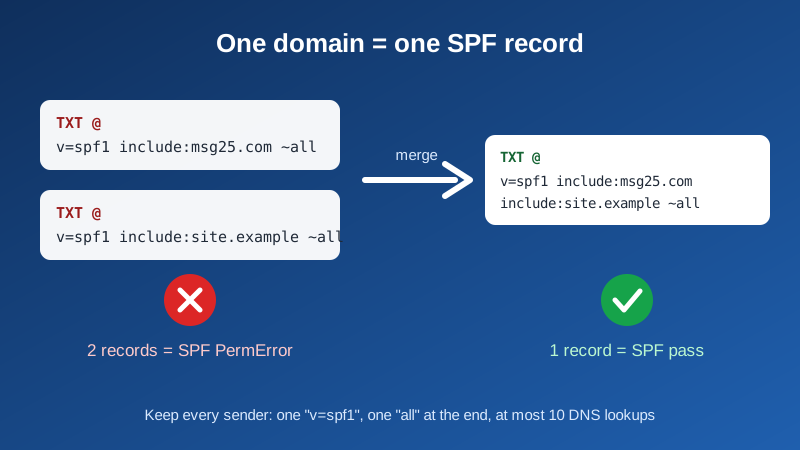
You set up business email on your own domain, added the SPF record from the setup guide, and now some messages bounce or land in spam. A common cause: your domain now has two SPF records. One came with your website or an older email setup, and you added the new one next to it instead of merging them.
This guide shows how to spot the problem, merge everything into a single record, and stay under the 10-lookup limit.
Why two SPF records break email
SPF is a TXT record that starts with v=spf1 and lists the servers allowed to send mail for your domain. The SPF standard allows exactly one such record per domain. When a receiving server finds two, it does not pick one or combine them. It returns PermError (a permanent error), which counts as an SPF failure.
The result depends on the receiver and on your DMARC policy: messages can go to spam, get rejected, or fail DMARC alignment checks. It often looks random, because some receivers are stricter than others.
Step 1: Check how many SPF records you have
Open your domain's DNS zone and look at every TXT record on the root of the domain (Name/Host @ or blank). Count how many start with v=spf1. You can also check it from outside with the free SPF Lookup tool, which shows the SPF record your domain publishes and its DNS lookup count (how to use it).
Typical result when something is wrong:
TXT  @  "v=spf1 include:msg25.com ~all"
TXT  @  "v=spf1 a mx include:site.example ~all"
Other TXT records on @ (site verification codes, for example) are fine. Only the ones starting with v=spf1 count.
Step 2: List every service that sends mail as your domain
Before deleting anything, write down who needs to send mail from addresses at your domain:
- Your mailboxes — for Mailbux this is
include:msg25.com. - Your website — contact forms and shop order emails, if they send from your domain directly.
- Newsletter or marketing tools — each one documents its own
include:value. - Billing, CRM or helpdesk tools that send as your domain.
Anything that is no longer used should be dropped, not copied over. Old entries waste lookups and authorize servers you don't control anymore.
Step 3: Merge them into one record
Build one record with these rules:
- Start with
v=spf1exactly once. - Add every mechanism you still need (
include:,ip4:,ip6:,a,mx), each once. - End with exactly one
allterm. Use~all(soft fail) while you test; move to-allonly when you are sure every sender is listed.
The two records above become:
TXT @ "v=spf1 include:msg25.com a mx include:site.example ~all"Then delete the second record and edit the first one to the merged value. Don't leave the old one in place "just in case" — that recreates the error.
Tip: if your website host sends through its own server, an a or ip4: entry may be what it needs instead of an include:. Use the value from that host's documentation.
Step 4: Stay under the 10 DNS lookup limit
Receivers stop after 10 DNS lookups while evaluating SPF. Going over also returns PermError, even with a single record. These terms cost a lookup each: include, a, mx, exists, redirect and ptr — and the lookups inside each included record count too. ip4, ip6 and all are free.
If you are over the limit:
- Remove services you no longer use.
- Drop
aormxif those servers never send mail for you. - Replace an include with the fixed
ip4:range it stands for, only if the provider publishes stable addresses. - Send marketing mail from a subdomain (for example
news.yourdomain.com), which gets its own SPF record and its own 10 lookups.
Avoid ptr completely: it is slow and discouraged by the standard.
Step 5: Verify
- Wait for DNS to update (usually minutes, up to the record's TTL).
- Run the SPF Lookup tool again: you should see one record and a lookup count of 10 or less.
- Send a test message to an external mailbox and open the full headers. Look for
spf=passin the Authentication-Results line.
For a full check of MX, SPF, DKIM and DMARC together, see How to Verify Your Email DNS Records Are Correct.
Other SPF mistakes that look similar
- SPF split across two TXT records — a long record can be split into several quoted strings inside one TXT record. Two separate TXT records are still two records.
- An old SPF-type DNS record — the separate "SPF" record type is obsolete. Use TXT only and remove the old one.
- Typos —
v=spf1must be lowercase with the digit 1, and mechanisms are separated by single spaces. - Two
allterms — anything after the firstallis ignored, so a merged record that kept both endings silently drops senders.
Where SPF fits with DKIM and DMARC
SPF is one of three records that decide whether your mail is trusted. DKIM signs each message, and DMARC tells receivers what to do when checks fail. If you are setting up a domain from scratch, follow DNS Records for Business Email: MX, SPF, DKIM, and DMARC — the exact values for your domain are always shown in your Mailbux dashboard under Manage → DNS.
New to Mailbux? You get unlimited business mailboxes on your own domain (each mailbox uses at least 1 GB of your plan's storage), on servers in the EU, US and Canada. Start free.