
Set Up Email on Your Domain Without Changing Nameservers
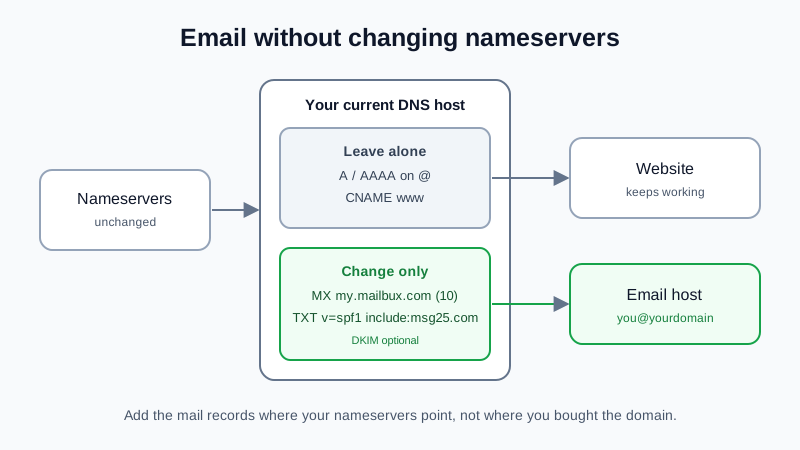
You can set up email on your domain without changing nameservers: leave the nameservers where they are, and at whichever company those nameservers point to, add one MX record and one SPF record for your new email host. Nameservers decide who runs your DNS; MX decides where mail goes. Changing only MX and SPF moves your email and leaves the website, its A and CNAME records, and the domain's registration exactly as they were. With Mailbux the two records are MX my.mailbux.com (priority 10) and SPF v=spf1 include:msg25.com ~all. Ten minutes of work, usually live within an hour.
Many setup guides tell you to point your nameservers at the email company. That moves your whole DNS zone and is the usual way a working website goes offline. This guide shows the safer route.
Nameservers vs MX: what each one controls
| Record | Controls | Change it for email? |
|---|---|---|
| NS (nameservers) | Which company answers every DNS question for the domain | No |
| A / AAAA on @ | Where the website lives | No |
| CNAME on www | Where www.yourdomain points | No |
| MX | Where incoming email is delivered | Yes, replace |
| TXT starting v=spf1 | Which servers may send mail for the domain | Yes, add or merge |
| TXT for DKIM | Signature that proves mail is really yours | Optional, improves deliverability |
For the background on why web and mail are separate services, see email hosting vs web hosting.
Step 1: Find out who runs your DNS today
The records must be added where your nameservers point, which is not always where you bought the domain. Run this in a terminal or command prompt:
nslookup -type=NS yourdomain.com (or dig NS yourdomain.com +short)
The names that come back tell you where to log in:
| Nameservers look like | Edit records at |
|---|---|
| ns01.domaincontrol.com | GoDaddy (GoDaddy steps) |
| dns1.registrar-servers.com | Namecheap BasicDNS (Namecheap steps) |
| name.ns.cloudflare.com | Cloudflare (Cloudflare steps) |
| Ending in squarespacedns.com, or Squarespace defaults | Squarespace domains dashboard (Squarespace steps) |
| Your web host's name (ns1.yourhost.com) | The DNS or Zone Editor screen in your hosting control panel |
If the domain was bought at one company but uses another company's nameservers, records added at the first company do nothing. This is the most common reason "I added the MX and nothing happened".
Step 2: Write down what is there now
Before you edit anything, take a screenshot or export of the current DNS records. Note the A record on @, the www record, any MX records and every TXT record. If something goes wrong later, you can put a value back in seconds.
Step 3: Get the values from your email host
- Sign up at dash.mailbux.com and add your domain: Services, then your plan, then Manage, then Domains, Add domain.
- Create the mailboxes you need under Manage → Mailboxes, so mail has somewhere to land once MX changes.
- Open Domains → Open DNS setup and keep the tab open. Each value has a copy button.
Step 4: Change only the mail records
- Delete the old MX records. Mixed MX records split your mail between two places. If the domain never had email, there may be none.
- Add the MX record: host
@, valuemy.mailbux.com, priority 10. - Add or merge SPF: host
@, TXT valuev=spf1 include:msg25.com ~all. A domain may have only one SPF record. If one already exists, for example because your website or a newsletter tool sends mail as your domain, addinclude:msg25.comto it instead of creating a second one (how to merge SPF records). - Optional: DKIM. Copy the DKIM TXT record shown in Domains → Open DNS setup to the same DNS screen. It is optional and improves deliverability.
- Do not touch the NS records, the A or AAAA record on
@, or thewwwCNAME.
Traps that break mail or the site
- Web host still delivering mail locally. If your DNS is in a cPanel-style hosting panel, look for its Email Routing setting. When it stays on "Local Mail Exchanger", mail sent from the website's own server (contact forms, order notices) can stay on the host instead of reaching your new mailbox. Set it to "Remote Mail Exchanger" after the MX change.
- A CNAME on the bare domain. A CNAME on
@conflicts with MX records at most DNS hosts. Use an A record for the site instead. - Two SPF records. Both then fail. Merge them into one line.
- Pasting the domain into the host field.
@means the domain itself. Typing yourdomain.com in the host field at some DNS hosts creates yourdomain.com.yourdomain.com. - A forwarding service still switched on. Registrar or DNS-host forwarding often re-adds its own MX records. Turn it off first; moving from forwarding to a real mailbox shows the order.
Step 5: Check that mail and site both work
- Open your website in a private browser window. It should load exactly as before.
- Run
nslookup -type=MX yourdomain.com. It should show my.mailbux.com. Domains → Open DNS setup also re-checks the records. - Send a message from a personal address to your new mailbox, then reply from Mailbux webmail. The reply's headers should show
spf=pass. - Submit your website's contact form once and confirm the message arrives in the new mailbox.
Some networks cache the old MX for a few hours, so a few messages may still reach the old host on the first day.
Using the Free plan for this
The Mailbux Free plan is free forever: 7 GB of shared storage, 1 domain, webmail, the Mailbux apps and SMTP sending, and outgoing mail carries a small "Sent via Mailbux" footer. It includes up to 7 business mailboxes. Standard IMAP and POP3 access for clients like Outlook or Apple Mail is available on paid plans. Setting up several people? See free business email for a small team. For the full overview, read our free business email guide.
FAQ
Will my website go down if I add email?
Not if you only change the MX and SPF records. The website depends on the A, AAAA and www records, which stay as they are.
Do I have to transfer my domain to get email?
No. The domain stays with its registrar and the nameservers stay where they are. You only add two records.
Can my website and email be with different companies?
Yes. That is normal. The website follows the A and CNAME records, and email follows the MX record.
When would I need to change nameservers?
Only if your current DNS host does not let you edit MX and TXT records. Most registrars, DNS services and hosting panels do.
How long until email works?
Usually within an hour. Some DNS hosts say changes can take up to 48 hours to reach every network.
Email on your domain, website untouched
Mailbux gives you real mailboxes on your own domain with webmail and apps, catch-all and forwarders, two-factor authentication, a free migration tool, and every SPF, DKIM and DMARC value under Domains → Open DNS setup with copy buttons and a re-check. Compare the plans on our pricing page.