
How to Change Your Business Email Password Without Breaking Every Device
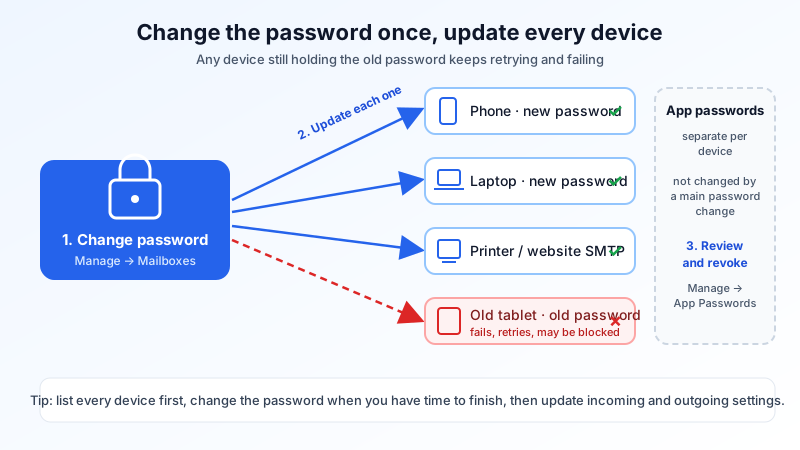
Changing an email password takes ten seconds. The trouble starts afterwards: the phone in your pocket, the laptop at home, the tablet in the meeting room and the scanner by the printer all still have the old password saved. Each of them keeps trying to sign in with it, every few minutes, all day. The result is mail that stops syncing on some devices, repeated "password incorrect" pop-ups and, on many mail servers, a temporary block on the connection after too many failed sign-ins.
This guide shows a calm order for changing a business email password on your own domain: list your devices first, change the password, then update every device the same hour. It also covers app passwords, which work differently from your main password and are the part most people forget.
The short version
- List every device and app that uses the mailbox: phones, tablets, desktop email apps, webmail bookmarks, scanners, printers, website contact forms and other software that sends through it.
- Change the password in one place. In Mailbux that is Manage → Mailboxes, then the mailbox actions and Change password.
- Update each device straight away, starting with the one that checks mail most often (usually your phone).
- Check app passwords. They keep working after a main password change. Revoke the ones you no longer use, or all of them if you think the account was accessed by someone else.
- Turn on two-factor authentication if you have not already, and give each mail app its own app password.
Step 1: Make a list before you change anything
Every device that has the old password saved will keep retrying it. Write down where the mailbox is used before you start, so nothing is left behind:
- Phones and tablets: the built-in Mail app on iPhone or iPad, the email app on Android, or a separate email app you installed.
- Computers: Outlook, Apple Mail, Thunderbird or another desktop app, on the office computer and any home laptop.
- Shared devices: a reception PC, a meeting-room tablet, a family computer where someone once checked work mail.
- Machines and software: scan-to-email on a printer or copier, a website contact form or plugin that sends through your mailbox over SMTP, accounting or booking software that sends invoices or reminders.
- Other people: an assistant or colleague who has the same mailbox set up on their own device.
If a device on this list sends mail on its own, such as a printer or website, consider giving it its own mailbox or app password. Then a future password change for a person does not break the machine, and the other way round.
Step 2: Change the password
In Mailbux
Sign in to the dashboard and open Manage → Mailboxes. Open the actions for the mailbox and choose Change password. You can let the dashboard generate a strong password, which is shown once, or set your own. Passwords must be 12 to 128 characters. The dashboard reminds you that devices using the old password stop syncing until they are updated, which is why Step 3 should follow straight away.
If your company's account is run by someone else, ask that admin to change the password for you, and agree a safe way to pass the new password on, such as a password manager or saying it in person. Do not send a new password by email to the same mailbox, or as a chat message that stays in the history.
Choosing the new password
- Use a long passphrase or a generated password, and store it in a password manager.
- Do not reuse a password from another site. If that site is ever breached, the same password is tried on your email.
- Do not just add a number to the old one. "Summer2026!" to "Summer2027!" is easy to guess for anyone who saw the first.
Step 3: Update every device the same hour
Most email apps notice the change by themselves and show a sign-in error or a prompt for the new password. Enter it there. If an app keeps failing quietly, remove the account from the app and add it again with the new password. Your mail stays on the server, so with an IMAP account nothing is lost by removing and re-adding it. (If you use POP3 and the app keeps the only copy of old mail, back that app's data up first. Our IMAP, SMTP and POP3 settings guide explains the difference and lists the server settings you need when re-adding an account.)
| Device or app | Where to enter the new password |
|---|---|
| iPhone / iPad Mail | Usually a "password incorrect" prompt appears in Mail. If not, open the account in the Settings app under Mail accounts and update the password for incoming and outgoing mail. Step-by-step: iPhone and iPad setup guide. |
| Android email apps | Tap the sign-in error notification or open the account settings in the app. If there is no password field, remove the account and add it again. |
| Outlook (desktop) | Outlook normally asks for the new password when it next connects. If it keeps asking, close Outlook, remove any saved credentials for the mail server from the computer's credential store, then start it again. |
| Apple Mail (Mac) | Enter the new password when prompted, or update it in the account settings. Check the outgoing (SMTP) server too, which can store its own copy. |
| Thunderbird | Remove the old entry under Saved Passwords in the settings, then check mail. Thunderbird asks for the new password for incoming and for outgoing mail. |
| Printers, scanners, websites, software | Open the device's or plugin's SMTP settings and replace the password. These rarely show an error you will see, so send a test message afterwards. |
Watch for both incoming and outgoing
Many apps store the password twice: once for receiving mail (IMAP or POP3) and once for sending (SMTP). A common result is a phone that receives new mail but cannot send, or the opposite. If only one direction works, look for a second password field in the outgoing server settings.
Why one forgotten device causes so much trouble
A device with the old password does not try once and give up. It retries every time it checks for mail. To a mail server, a burst of failed sign-ins from one place looks the same as someone guessing passwords, so many servers temporarily block that connection as a security measure. While the block lasts, other devices on the same network, such as the rest of the office behind one internet connection, can be affected too.
So if mail stops working for several people right after one person changed their password, look first for a device that still has the old one: an old phone in a drawer, a laptop that was switched back on, or a printer. Once every device has the new password, normal sign-ins resume.
Step 4: Check your app passwords
App passwords are separate sign-in credentials for individual mail apps. They are needed when two-factor authentication is on, because most mail apps cannot ask for a one-time code. Two points matter when you change your main password:
- App passwords are not changed by a main password change. Devices using an app password keep working. That is convenient for a routine change, but it also means a main password change alone does not lock out a device that has one.
- Revoke what you no longer use. In Mailbux, open Manage → App Passwords to see the app passwords issued for each mailbox and revoke any you do not recognise or no longer need. Devices using a revoked app password stop working, so issue a new one for each device you keep.
Give every device its own app password with a clear name, such as "Office laptop Outlook" or "Sara's iPhone". When one device is lost or replaced, revoke only that one and nothing else breaks. Our two-factor authentication guide walks through turning on 2FA and creating app passwords.
If you are changing the password because of a problem
A routine change and an emergency change are different. If you think someone else has used the account, for example you see sent messages you did not write, or contacts tell you they got strange mail from you, do more than change the password:
- Change the password and revoke all app passwords for the mailbox, then issue fresh ones only for devices you trust.
- Check Manage → Forwarders and the mailbox's server-side rules for anything sending copies of your mail to an outside address, and remove what you did not set up.
- Check the Sent folder for messages you did not send, and warn the people they went to.
- Turn on two-factor authentication.
- Change the password on any other site where you used the same one.
The same steps apply when a staff member leaves. Our email offboarding checklist covers that case in order, including aliases and shared mailboxes.
Common mistakes
- Changing the password late on a Friday and updating devices on Monday. The devices left behind will fail all weekend. Change it when you have time to finish Step 3.
- Forgetting the outgoing server password, so mail arrives but replies sit in the Outbox.
- Using one password for several people. Every change then means updating everyone's devices. Give each person their own mailbox, and use shared mailboxes or aliases for addresses like info@ or sales@.
- Assuming app passwords were reset too. They were not. Review them on the App Passwords page.
- Sending the new password by email to the mailbox you just changed, or to a personal address.
Password change checklist
- ☐ List of devices, apps, printers and software that use the mailbox
- ☐ New password generated or chosen (12 to 128 characters), saved in a password manager
- ☐ Password changed in Manage → Mailboxes
- ☐ Phone and tablet updated (incoming and outgoing)
- ☐ Desktop apps updated (incoming and outgoing)
- ☐ Printers, website forms and other software updated, test message sent
- ☐ App passwords reviewed, unused ones revoked
- ☐ Two-factor authentication on
Email on your own domain, with the controls in one place
Mailbux gives you business email on your own domain with a dashboard to create and suspend mailboxes, change passwords, issue and revoke app passwords for each device, and manage aliases, shared mailboxes and forwarders, plus two-factor authentication and the SPF, DKIM and DMARC values for your domain under Domains → Open DNS setup. See the plans on our pricing page.