
Free Business Email for Multiple Users: Set Up a Small Team
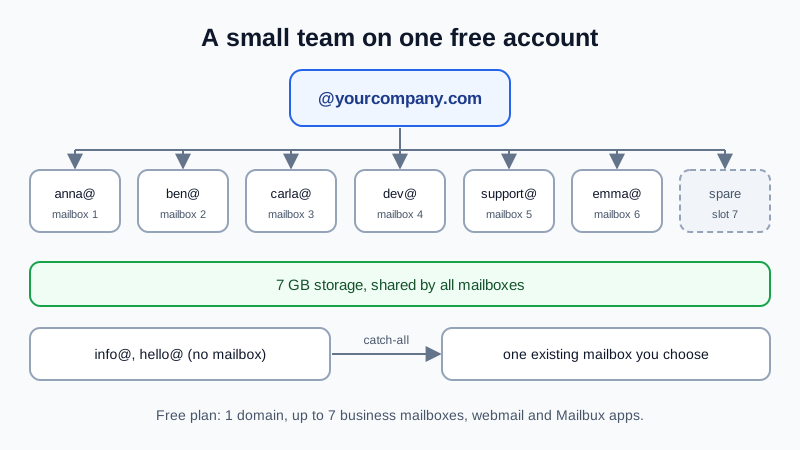
Yes, a small team can have business email for free: the Mailbux Free plan includes up to 7 business mailboxes on 1 domain, so up to seven people each get their own address, like [email protected] and [email protected]. You add your domain once, publish two DNS records (MX and SPF), then create one mailbox per person under Manage → Mailboxes and hand each person their sign-in. Everyone reads and sends in Mailbux webmail and the Mailbux apps. The 7 GB of storage is shared by the whole team, and outgoing mail carries a small "Sent via Mailbux" footer.
This guide is about getting several people working on one free account: planning the addresses so seven slots go far, the setup order, and the house rules that save trouble later. If you are still deciding how many addresses you need at all, read how many email accounts a small business needs first.
What a team gets on the Free plan
| Item | On Free | What it means for a team |
|---|---|---|
| Mailboxes | Up to 7 business mailboxes | Up to seven separate inboxes, each with its own password |
| Domain | 1 domain | Everyone shares the same @yourcompany.com |
| Storage | 7 GB, shared | One pool for all mailboxes, not 7 GB each |
| Reading mail | Webmail and the Mailbux apps | No Outlook, Apple Mail or Thunderbird; IMAP and POP3 are on paid plans |
| Extra addresses | Catch-all and forwarders | Role addresses do not always need their own mailbox |
| Outgoing mail | SMTP sending, "Sent via Mailbux" footer | Every message the team sends carries the footer |
Step 1: Plan the addresses before you create anything
Seven slots go further than they look if you decide up front which addresses really need a person reading them.
- One mailbox per person who writes to customers. Personal mailboxes keep conversations with the right person and make it easy to hand work over later.
- Pick one name format and keep it. firstname@ is friendly for teams under ten; firstname.lastname@ avoids clashes when a second Anna joins. Mixing formats looks careless on business cards.
- Decide how role addresses arrive. sales@, info@ or invoices@ can be their own mailbox, but that uses a slot each. With a catch-all, mail sent to any address on your domain that has no mailbox lands in one existing mailbox you choose, so info@ and hello@ can reach the office manager without using slots.
- Keep one slot free for a new hire or a temporary helper, so nobody has to share a password while you reshuffle.
| Address | Best as | Uses a mailbox slot? |
|---|---|---|
| anna@, ben@ (people) | Own mailbox | Yes, one each |
| support@ that two people answer in turn | Own mailbox, password known to both | Yes |
| info@, hello@ (low volume) | Catch-all into one existing mailbox | No |
| A mailbox whose copies must also reach an outside inbox | Forwarder on that mailbox (Manage → Forwarders) | No extra slot |
A catch-all also collects spam sent to made-up names on your domain, so check that mailbox's spam folder now and then. For the difference between these address types in general, see shared mailbox vs alias vs distribution list.
Step 2: Add the domain and publish two DNS records
- Sign up at dash.mailbux.com and add your domain: Services, then your plan, then Manage, then Domains, Add domain.
- Open Domains → Open DNS setup. Every record has a copy button.
- At the company that runs your domain's DNS, add the MX record (host
@, valuemy.mailbux.com, priority 10) and remove any other MX records. - Add the SPF record (host
@, TXT valuev=spf1 include:msg25.com ~all). A domain may have only one SPF record, so merge it with an existing one if needed. - DKIM is optional and improves deliverability: copy its TXT record from Domains → Open DNS setup to your DNS host.
Your website keeps working, because these records only affect mail; see email without changing nameservers. Step-by-step screens for common DNS hosts: GoDaddy, Namecheap, Cloudflare and Squarespace.
Create the mailboxes before or right after the MX change. Mail to an address that does not exist yet bounces back to the sender.
Step 3: Create one mailbox per person
- Go to Manage → Mailboxes and create each mailbox from your plan in Step 1.
- Give every person a different, long password. Never reuse one password across the team.
- Send each person their address and password through a private channel (in person or a password manager share), not by email to the same mailbox.
- Ask each person to sign in once and change the password to one only they know.
- If you set up a catch-all, point it at the mailbox of the person who will sort that mail.
Step 4: Get everyone reading mail
On the Free plan each person uses Mailbux webmail in a browser or the Mailbux apps. Standard IMAP and POP3 access for clients like Outlook or Apple Mail is available on paid plans, so if someone insists on a desktop mail program, that is the point where a paid plan makes sense. Agree on one way for the team to start with; mixed setups make support harder.
Ask everyone to send one test message to a personal address on day one. The reply should arrive in their own mailbox, and the received message shows the "Sent via Mailbux" footer, so nobody is surprised by it later.
House rules that save trouble later
- Watch the shared storage. 7 GB for seven people is about 1 GB each on average, and one person who keeps every large attachment can fill most of it. Clear big old attachments regularly; what to do when a mailbox is full covers the cleanup.
- The business owns the addresses. Keep a short list of who has which mailbox and who knows the passwords for role mailboxes.
- When someone leaves, change that mailbox's password the same day. Keep the mailbox for a while so customer threads are not lost, or point its mail to a colleague with a forwarder, then reuse or remove the slot.
- Do not share one personal mailbox between two people. It hides who sent what and breaks the moment one of them changes the password.
When the team outgrows Free
Free stops fitting when you need an eighth mailbox, a second domain, more storage, or desktop mail clients over IMAP. Paid plans have no per-user fees, so adding people does not add a per-seat charge; see pricing for what each plan includes. For how Free compares with other ways to get a no-cost business address, read our free business email account guide.
FAQ
How many people can use free business email on Mailbux?
The Free plan includes up to 7 business mailboxes on 1 domain, so up to seven people can each have their own address.
Does each mailbox get its own 7 GB?
No. The Free plan has 7 GB of shared storage for all its mailboxes together.
Can my team use Outlook on the Free plan?
No. Free works in Mailbux webmail and the Mailbux apps. Standard IMAP and POP3 access for clients like Outlook or Apple Mail is available on paid plans.
Can two people share one address like support@?
Yes, as one mailbox whose password both know, or by letting support@ fall into one person's mailbox through the catch-all. Each person should still have their own mailbox for their own mail.
Will customers see that we use a free plan?
Outgoing mail on the Free plan carries a small "Sent via Mailbux" footer. Your address itself is your own domain.
Email for the whole team on your own domain
Mailbux gives every person a real mailbox on your domain, with webmail and apps, catch-all and forwarders, two-factor authentication, a free migration tool, and the SPF, DKIM and DMARC values for your domain under Domains → Open DNS setup. Compare the plans on our pricing page.