
Upgrade Pending? How to Finish an Unpaid Invoice
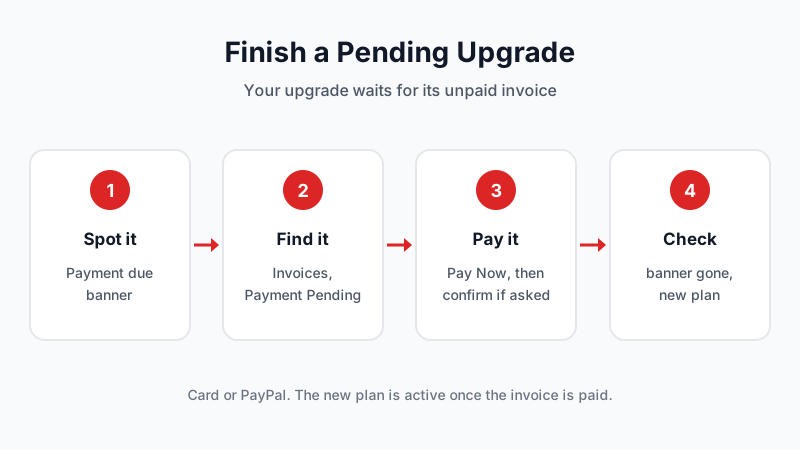
When you start an upgrade, the dashboard creates an invoice for it. The upgrade is applied once that invoice is paid. If you closed the payment window, the card was declined, or you didn't finish in PayPal, the invoice is still unpaid. Until it is paid, your service stays on its current plan.
This guide shows how to spot a pending upgrade, find the open invoice and pay it, so your new plan becomes active.
How to tell an upgrade is pending
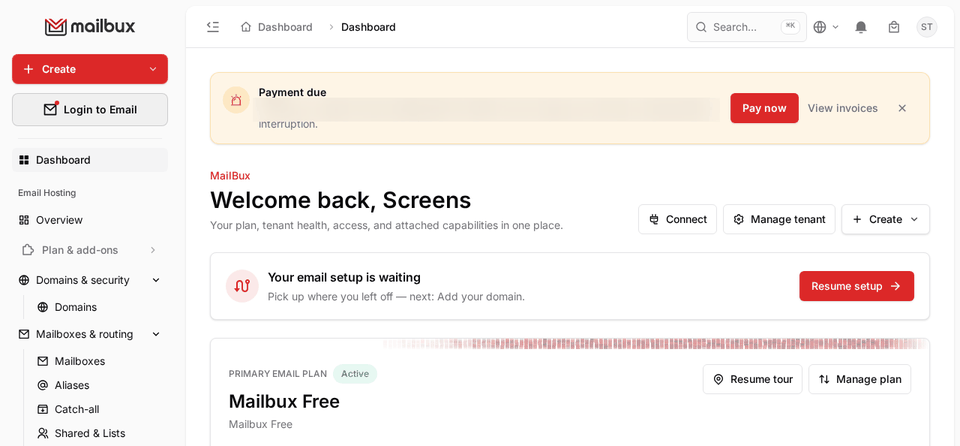
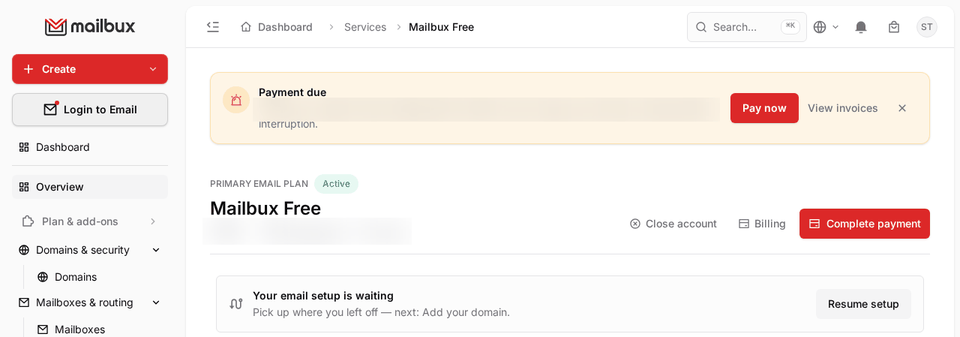
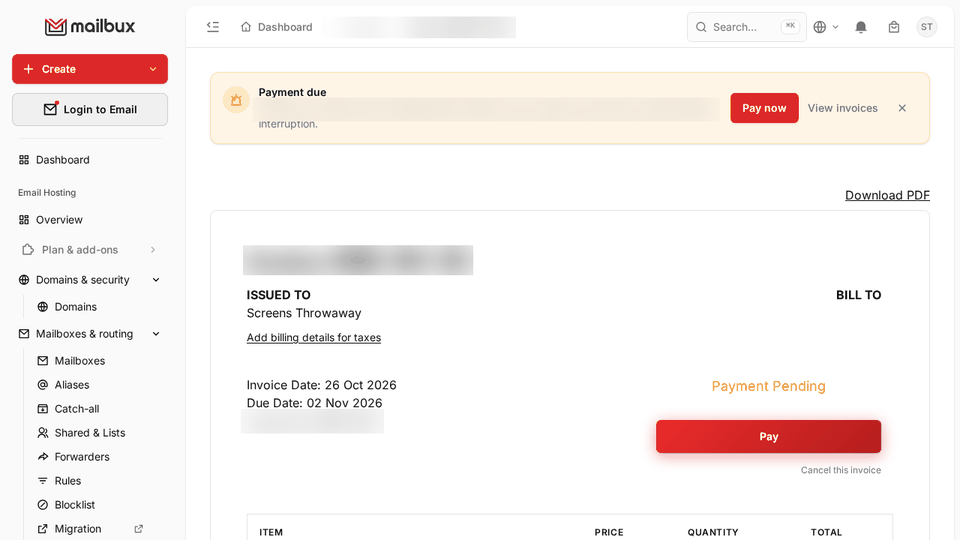
- A yellow Payment due banner at the top of the dashboard says you have an unpaid invoice, with Pay now and View invoices.
- On your plan page, the Upgrade button now says Complete payment.
Step 1: Find your open invoice
Click View invoices in the banner, or open Invoices from the dashboard. The page shows your total due and how many invoices are unpaid.
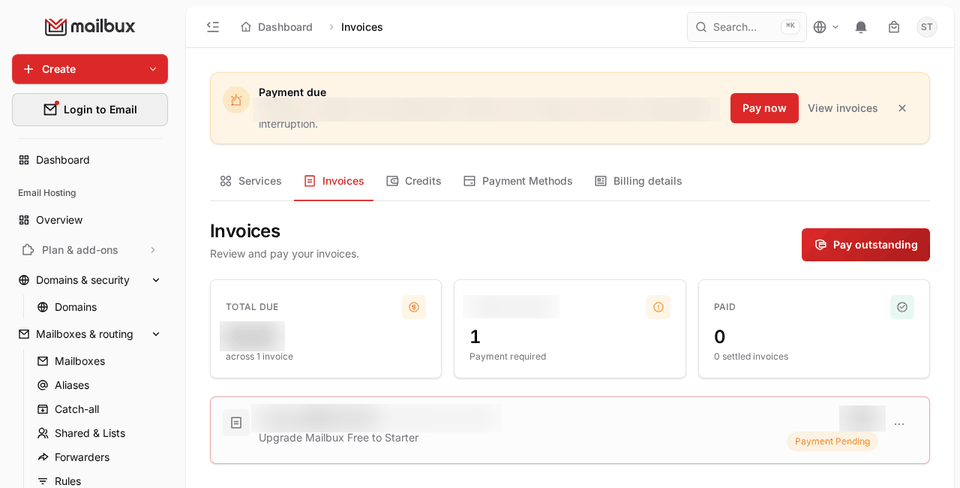
Open the upgrade invoice. Its line reads "Upgrade ... to ..." and its status is Payment Pending.
Step 2: Pay it
Click Pay on the invoice. You can also use Pay now in the banner, Pay outstanding on the Invoices page or Complete payment on your plan page. They all lead to the same payment window.
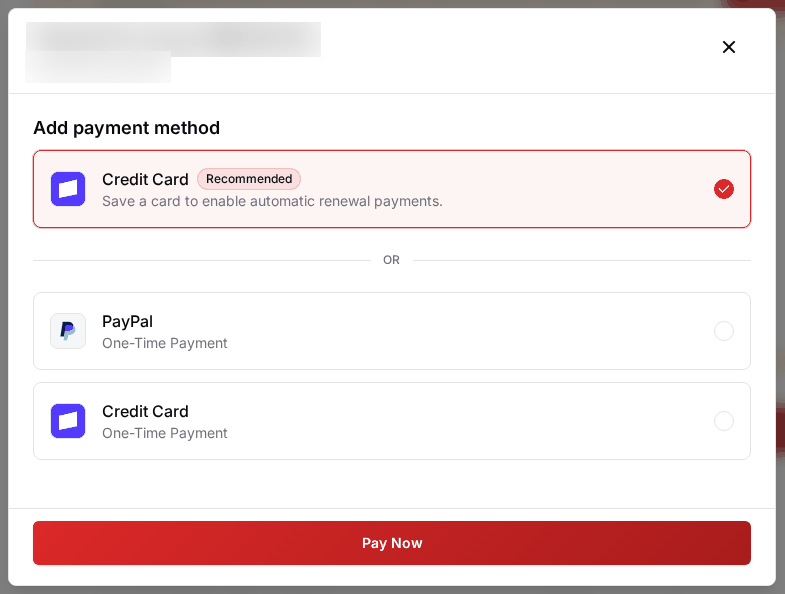
Choose:
- Credit Card (Recommended): saves the card for automatic renewals.
- PayPal: a one-time payment.
- Credit Card, one-time payment: pays this invoice only.
Click Pay Now. If your bank asks you to confirm the payment, for example in its app or with a code, finish that step before you close the window.
Tip: if you're not sure an email is really from us, sign in at dash.mailbux.com yourself and pay from Invoices. See also how to check a link before clicking.
If you paid with PayPal but the invoice still says unpaid
Refresh the invoice page. Still Payment Pending? Open a support ticket with the invoice number. Don't pay twice.
If your card was declined
Check the card number, expiry date and billing details, and that the card allows online payments. Then try again, or pay with PayPal instead.
Step 3: Check the plan is active
When the invoice is paid, the Payment due banner is gone, the invoice shows as paid, and your plan page shows the new plan name.
What if I don't pay it?
Until it is paid, your service stays on its current plan.
Changed your mind?
Open the invoice and click Cancel this invoice under the Pay button. Cancelling the invoice also cancels the upgrade. Your service stays on its current plan.
Need help?
Starting from scratch? Read how to upgrade your Mailbux Free plan to a paid plan. For anything else, open a support ticket from your dashboard and include your invoice number. New to Mailbux? Create a free account.