
How to Block Spam and Phishing Emails with Mailbux Filters (Step-by-Step Guide)
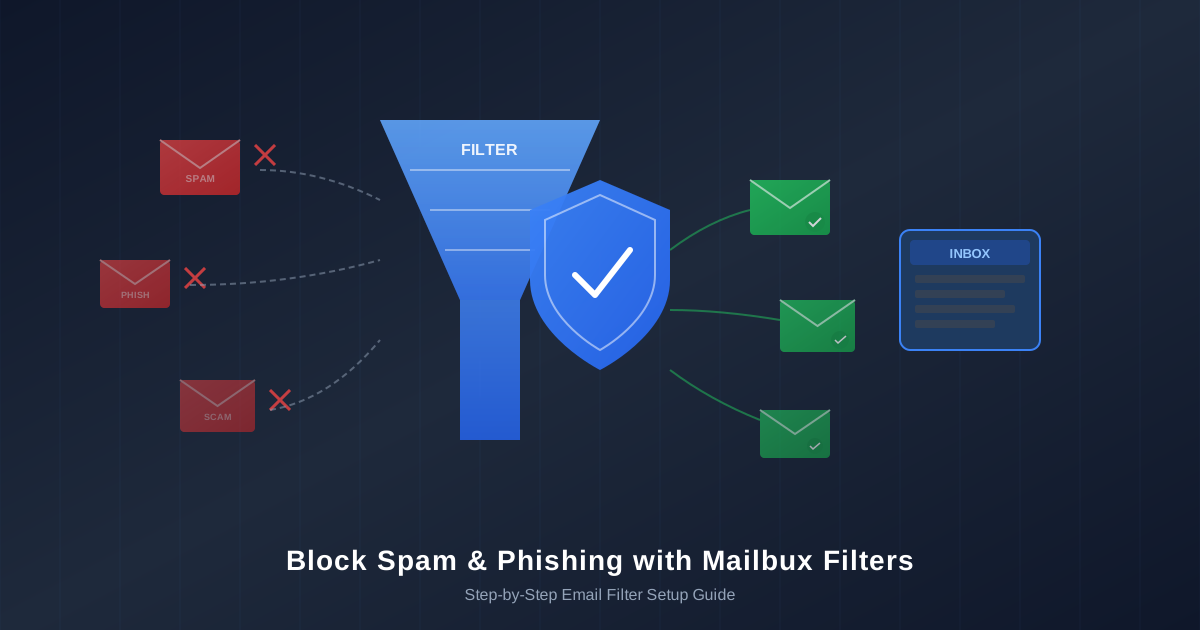
Spam and phishing emails are more than an annoyance — they are a genuine threat to your business. Every day, attackers send millions of fake emails impersonating companies like Meta, PayPal, banks, and shipping carriers. One careless click on a phishing link can expose your passwords, financial data, or customer information. And even if you never click, wading through dozens of spam messages every morning wastes time you could spend on actual work.
The good news: with Mailbux — Free business email hosting on your own domain. Sign up now, you get a built-in email filter system that lets you automatically block, move, or flag unwanted emails before they clutter your inbox. This guide walks you through exactly how to set up filters to stop spam and phishing emails in their tracks.
Why Email Filters Matter
Phishing attacks have become disturbingly sophisticated. Here are some of the most common scam emails businesses receive every day:
- Fake Meta/Facebook emails — "Your Facebook page will be deactivated" or "Action required on your account." These emails mimic Meta branding perfectly and trick you into entering your login credentials on a fake site.
- Fake PayPal emails — "Verify your payment method" or "Your account has been limited." They include realistic PayPal logos and direct you to a cloned login page.
- Fake bank emails — "Unusual activity detected on your account" or "Your card has been suspended." These target both personal and business bank accounts.
- Fake shipping notifications — "Your package is waiting" or "Delivery failed — confirm your address." Especially common during holidays.
- Cryptocurrency and investment scams — "Bitcoin profit opportunity" or "Guaranteed returns on your investment."
- Unwanted newsletters and marketing — promotional emails from services you never signed up for, clogging your inbox daily.
Email filters act as a gatekeeper. Instead of manually deleting these messages one by one, you define rules once and Mailbux enforces them automatically — 24 hours a day, on every incoming email. A well-configured set of filters can eliminate 90% or more of unwanted email from ever reaching your inbox.
How Mailbux Filters Work
Filters live in webmail: sign in at https://exp.mail.mailbux.com and open Settings → Filters. A rule checks every incoming message against your conditions and runs your actions on matches. You can start from scratch with Add Rule or pick one of the Start from template options.
Each rule has three parts:
- Name: a label so you can find the rule later (e.g., "Block Meta Phishing")
- Conditions: From, To, Cc, Subject, Body, Header, Size or Attachment, for example "Subject contains …"
- Actions: Move to folder, Copy to folder, Forward to, Mark read, Star, Add tag, Discard, Reject or Stop
Rules run automatically on every incoming email. To block one sender for every mailbox on your plan at once, admins can also use Manage → Blocklist in dash.mailbux.com.
Actions Available
| Action | What It Does | Best For |
|---|---|---|
| Move to folder "Junk" | Keeps the message out of your inbox but lets you review it | Suspected spam where you want a safety net |
| Discard | Silently deletes the message; it never reaches any folder | Obvious spam and phishing you are certain about |
| Move to folder | Files the message in a folder of your choice | Newsletters, receipts, notifications |
| Stop | Ends processing, so later rules do not run | Rules that protect important senders |
Real-World Examples: Setting Up Filters Step by Step
Here are five practical rules that cover the most common spam and phishing scenarios.
Example 1: Block Fake Meta/Facebook Phishing Emails
Fake Meta and Facebook emails are among the most common phishing attacks targeting businesses.
- Open webmail at https://exp.mail.mailbux.com → Settings → Filters
- Click Add Rule and name it
Block Meta Phishing - Condition: Body contains
action required on your account - Action: Discard
- Click Save Rules
Tip: use specific phrases rather than just the word "Meta" to avoid catching real messages. Add more rules for phrases such as your Facebook page will be deactivated or your ad account has been restricted.
Example 2: Block Emails from a Specific Domain
If one domain keeps sending you spam, catch everything from it with one rule.
- Open webmail at https://exp.mail.mailbux.com → Settings → Filters
- Click Add Rule and name it
Block Spammy Domain - Condition: From contains
@spammydomain.com - Action: Discard
- Click Save Rules
Every message from that domain is removed, whatever the exact address.
Example 3: Filter PayPal Phishing to Junk
You may also get real PayPal emails, so move suspects to Junk instead of discarding them.
- Open webmail at https://exp.mail.mailbux.com → Settings → Filters
- Click Add Rule and name it
PayPal Phishing - Condition: Body contains
verify your payment method - Action: Move to folder → Junk
- Click Save Rules
Check Junk now and then for real PayPal messages.
Example 4: Block Cryptocurrency and Investment Scams
Investment scams follow a few predictable phrases.
- Open webmail at https://exp.mail.mailbux.com → Settings → Filters
- Click Add Rule and name it
Crypto Scams - Condition: Subject contains
guaranteed returns - Action: Move to folder → Junk
- Click Save Rules
Add more rules for phrases such as bitcoin profit.
Example 5: Route Newsletters to a Dedicated Folder
Newsletters are not malicious, but they distract from real conversations.
- Open webmail at https://exp.mail.mailbux.com → Settings → Filters
- Click Add Rule and name it
Route Newsletters - Condition: Body contains
unsubscribe - Action: Move to folder → Newsletters
- Click Save Rules
Most legitimate newsletters include the word "unsubscribe" (it is legally required in many countries), so this catches most of them.
Best Practices for Email Filter Setup
- Move to Junk when unsure. A discarded message is gone for good; Junk lets you review it.
- Be specific. A rule matching just "account" catches far too much. Use phrases like "your account has been suspended".
- Review Junk weekly. Real companies sometimes use urgent wording too.
- Report phishing to the real company. Forward it to their abuse address so they can take the scam down.
- Watch for common phishing phrases: "Verify your account immediately", "Your account will be suspended", "Unusual activity detected", "Your package is waiting", "You have won".
How to Protect Important Senders
Rules run in order. To make sure mail from a key sender always reaches your inbox, put a rule at the top of the list:
- In Settings → Filters, click Add Rule and name it, e.g.,
Keep — PayPal - Condition: From contains the real sender address, e.g.,
[email protected] - Actions: Move to folder → Inbox, then Stop
- Move the rule to the top and click Save Rules
Good candidates: your bank, key clients, payment processors, your domain registrar and tax authorities.
Managing Your Existing Filters
All your rules are listed in webmail under Settings → Filters. There you can edit a rule, turn it off for a while, change the order or delete it. Review the list every few months and update phrases as scams change.
Start Protecting Your Inbox Today
- Sign in to webmail at https://exp.mail.mailbux.com (no account yet? Sign up free)
- Open Settings → Filters
- Add a rule for "action required on your account" (Discard) to stop Meta/Facebook phishing
- Add a rule for "verify your payment" (Move to Junk) to catch PayPal scams
- Add a rule for "unsubscribe" (Move to folder: Newsletters) to organize marketing email
- Protect your most important senders with a rule at the top that ends with Stop
Six rules, five minutes, and a much cleaner inbox.