
How to Check a Link Before You Click It in an Email
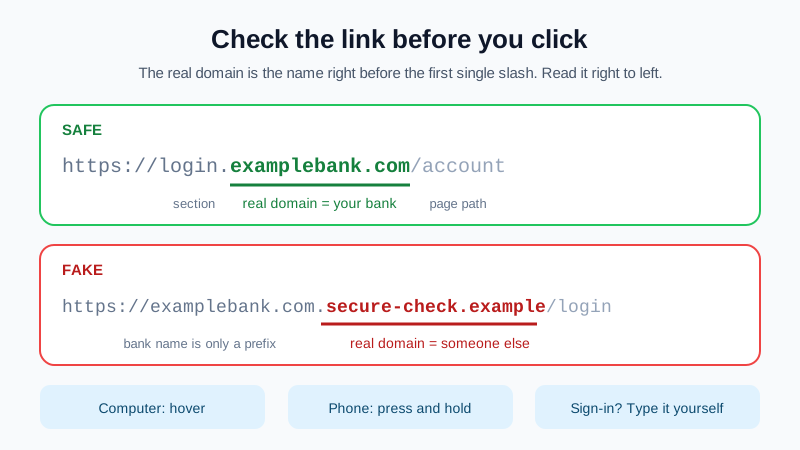
Most phishing emails need one thing from you: a click. The text of a link can say anything, so the only way to know where it really goes is to look at the address behind it before you tap. This guide shows how to do that on a computer and on a phone, how to read a web address so a fake one stands out, and what to do if you already clicked.
The short version
- Never trust the words or the button. Look at the real address behind the link.
- On a computer, hover the mouse over the link and read the address that appears. On a phone, press and hold the link to preview it, without opening it.
- Find the real domain: the part just before the first single
/, read from right to left. - If the email asks you to sign in, pay or "confirm" something, don't use the link at all. Type the site's address yourself or use your bookmark.
Why the link text lies
An email link has two parts: what you see and where it goes. The visible part can be any text, a button that says "View invoice", or even a full web address that looks right. The real destination is hidden in the message code. A message can show https://www.examplebank.com while the link actually opens a completely different site.
That is why "it looks like my bank's address" is not proof. You have to check the destination, not the label.
How to preview a link on a computer
- Hover, don't click. Move the mouse over the link or button and keep it still. Most email programs and browsers show the real address in a small box near the pointer or in the bottom-left corner of the window.
- Check buttons too. Big coloured buttons ("Pay now", "Open document") are links like any other. Hover over them the same way.
- Copy, don't open. If the address is long, right-click the link, choose "Copy link", and paste it into a plain text note to read it calmly. Pasting it into the browser's address bar and pressing Enter opens it, so stop at reading.
How to preview a link on a phone
Phones have no mouse, so a normal tap opens the link straight away. Instead:
- Press and hold the link (a "long-press"). Most mail apps on iPhone and Android then show the full address, sometimes with a small preview of the page, plus options such as Copy or Open.
- Read the address in that pop-up. If a page preview starts loading, it has not yet sent anything you type, but don't tap into it.
- If you're unsure, close the pop-up and check the message later on a computer, where long addresses are easier to read.
How to read a web address
Fake links rely on people reading addresses from left to right and stopping at the first familiar word. The part that decides who owns the site is the domain: the last name before the first single slash after https://. Read it from right to left.
| Address in the link | Real domain | Safe? |
|---|---|---|
https://www.examplebank.com/login | examplebank.com | Yes, if that is your bank's real domain |
https://login.examplebank.com/account | examplebank.com | Yes: "login." is just a section of the same site |
https://examplebank.com.secure-check.example/login | secure-check.example | No: the bank name is only a prefix |
https://secure-check.example/examplebank.com/login | secure-check.example | No: everything after the slash is just a page path |
https://examplebank-support.example | examplebank-support.example | No: an extra word makes it a different domain |
Two rules cover most cases. Anything to the left of the real domain (like login. or examplebank.com.) can be chosen freely by whoever owns that domain. Anything to the right of the first single slash is just a page on that site and proves nothing.
Look-alike tricks to watch for
- Swapped letters:
rninstead ofm,0instead ofo,lor1instead ofi. "examp1ebank" reads like "examplebank" at a glance. - Foreign characters: some letters from other alphabets look identical to Latin ones. Browsers often show such domains in a coded form that starts with
xn--. If a familiar brand's link showsxn--, treat it as fake. - Different ending:
examplebank.coorexamplebank.netinstead ofexamplebank.comis a different owner. - Extra words: "-secure", "-login", "-verify", "-support" glued onto a brand name.
The same tricks are used in the sender's address. Our guide to reading email headers and spotting a forged message shows how to check who really sent a message.
Shortened links, redirects and QR codes
- Short links (short domains with a random code) hide the destination completely. A real bank or supplier rarely sends one for a sign-in or payment. If you can't see where it goes, don't open it.
- Redirects through a known site: an address can start with a well-known domain and carry the real target inside it, for example
https://known-site.example/redirect?url=https://bad-site.example. Look for a secondhttps://or aurl=part. - "Shared document" links: a message says a file was shared with you, the link goes to a real file-sharing service, and that page then asks you to "sign in with your email" on another site. A document should never need your email password.
- QR codes in email: scanning a code with your phone skips every check above. Treat a QR code in an email exactly like an unknown link, and preview the address your camera shows before opening it.
The safest habit: don't use the link at all
For anything that matters (sign-ins, payments, password resets you didn't ask for, "your account will be closed" warnings), skip the link even if it looks fine. Open the site the way you always do: a bookmark, the official app, or typing the address yourself. If the request is real, you will see it there too.
Be extra careful when a link lands on a sign-in page. A copy of a login page is the most common phishing trap, because it collects your password the moment you press Enter. Our guide to preventing phishing attacks on business email covers more warning signs, like urgency, odd attachments and unusual requests.
If you already clicked
- Clicked but typed nothing: close the page. Opening a link on its own is usually less serious than entering details or downloading a file. If a file downloaded, don't open it, delete it, and run your device's security scan.
- Typed your email password: change it at once from a device you trust, by going to the real site directly. Then turn on two-factor authentication.
- Check for changes: look for new forwarding rules, filters or replies you didn't send. Our hacked email account recovery steps walk through it.
- Typed card or bank details: call your bank using the number on your card or their official site, not a number from the email.
- Tell your team: if it came to a work mailbox, warn the person who manages your email so others who got the same message don't click.
Stop the same message next time
Once you've found a fake sender or domain, you can send future copies straight to Junk or delete them with an inbox rule. The step-by-step filters guide has ready examples.
Quick checklist
- Hover (computer) or press and hold (phone). Never just tap.
- Find the real domain: right before the first single slash, read right to left.
- Look for swapped letters,
xn--, a different ending or extra words. - Short link, redirect or QR code you can't verify? Don't open it.
- Sign-in or payment request? Ignore the link and go to the site yourself.
- Clicked and typed a password? Change it, turn on 2FA, check forwarding rules.
Professional email on your own domain
Mailbux gives your team email on your own domain with webmail and mobile apps, inbox filters, two-factor authentication and app passwords for every device, and copy-and-paste SPF, DKIM and DMARC values under Domains → Open DNS setup so others can't easily fake your domain. Compare the options on our pricing page.