
How to Upgrade Your Mailbux Free Plan to a Paid Plan
Free includes 1 domain. Paid plans add unlimited domains, so you can manage email for multiple projects or businesses from a single dashboard.
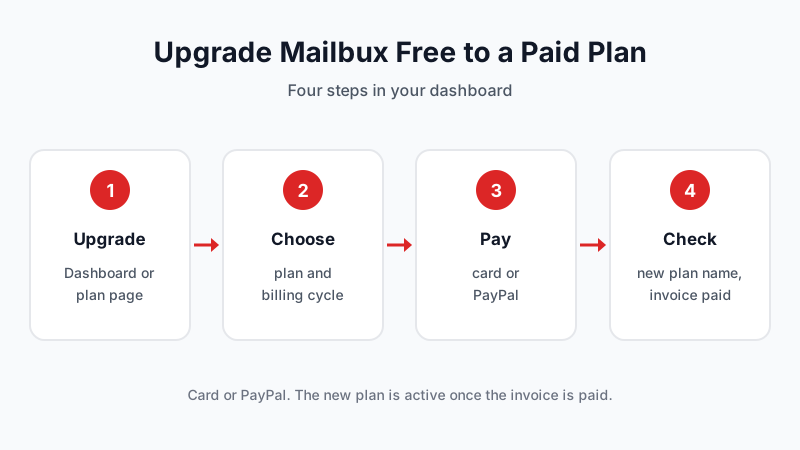
If you started on Mailbux Free and are ready for a paid plan, the upgrade takes a few clicks in your dashboard. This guide walks through each screen, from the first click to the paid invoice, so you know what to expect before you start.
Before you start
- Sign in at dash.mailbux.com with the account that owns your Free service.
- Have a card or a PayPal account ready.
Step 1: Click "Upgrade"
There are two places to start:
- On the Dashboard, the Primary email plan card shows "Mailbux Free" with an Upgrade button on the right.
- Or open Overview in the left menu (your Mailbux Free plan page) and click Upgrade at the top right.
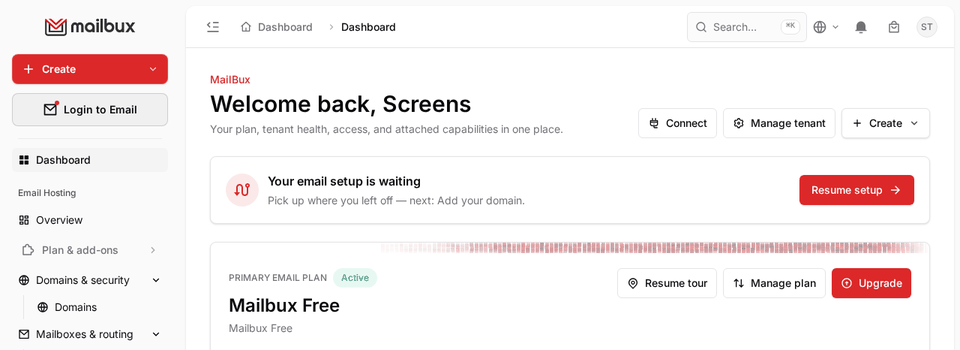
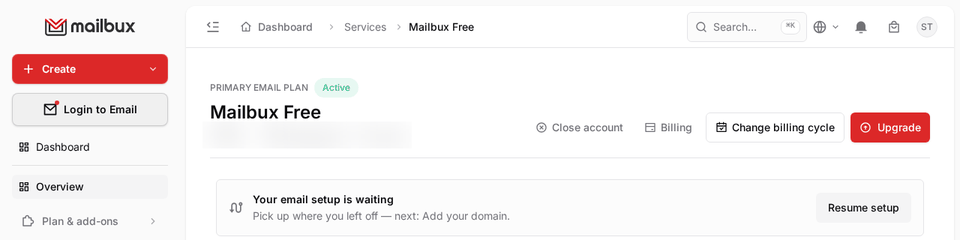
Both buttons open the same Change plan page.
Step 2: Choose your plan and billing cycle
The Change plan page has two parts:
- Billing cycle at the top: Monthly, 3 months, 6 months or Yearly. The price for each cycle is shown on its button.
- Choose a plan: your current plan is marked Current Plan. Click the plan you want.
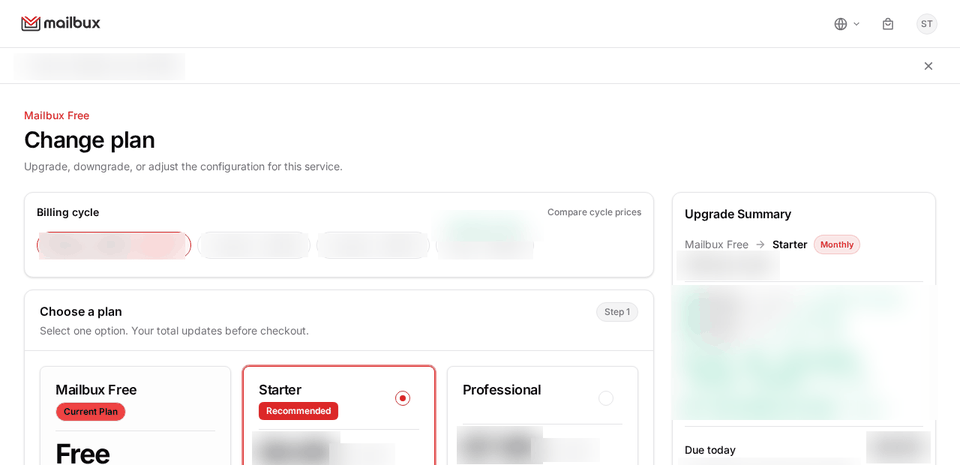
On the right, the Upgrade Summary shows what changes from your current plan and the amount Due today. Check it, then click the pay-and-upgrade button under the summary.
Not sure which plan fits? Compare them on the pricing page. If you plan to run email for more than one business, see how to add a second domain to your business email.
Step 3: Pay by card or PayPal
A payment window opens for your upgrade invoice and shows the amount due.
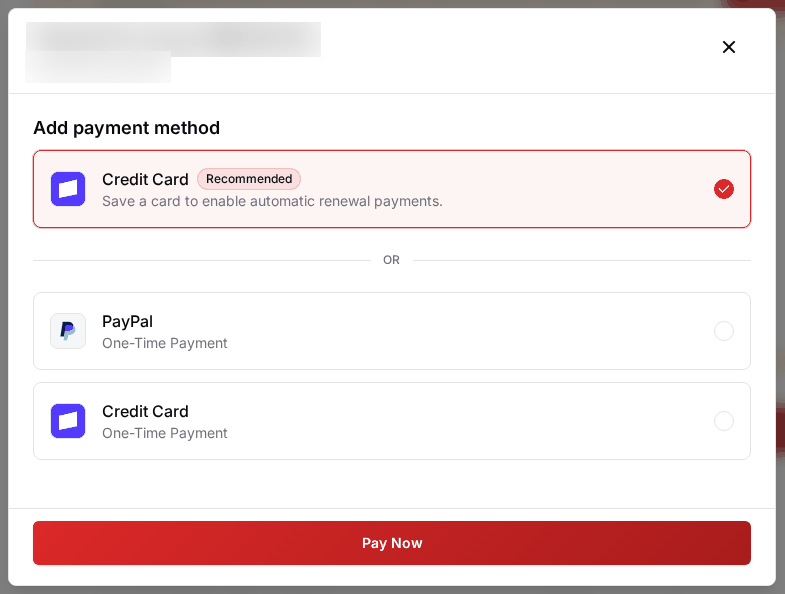
- Credit Card (Recommended): saves the card so renewals are paid automatically.
- PayPal: a one-time payment.
- Credit Card, one-time payment: pays this invoice without saving the card.
Pick one and click Pay Now.
Step 4: Check that the upgrade is active
After the payment goes through, open your plan page from the Dashboard. The plan card shows your new plan name, and the invoice under Invoices shows as paid.
If the button on your plan page still says Complete payment, or you see a yellow Payment due banner, the invoice is not paid yet. See the next section.
Upgrade started but not finished?
If you closed the payment window before paying, the upgrade waits for its invoice:
- A yellow Payment due banner appears at the top of the dashboard, with Pay now.
- On your plan page, Upgrade changes to Complete payment.
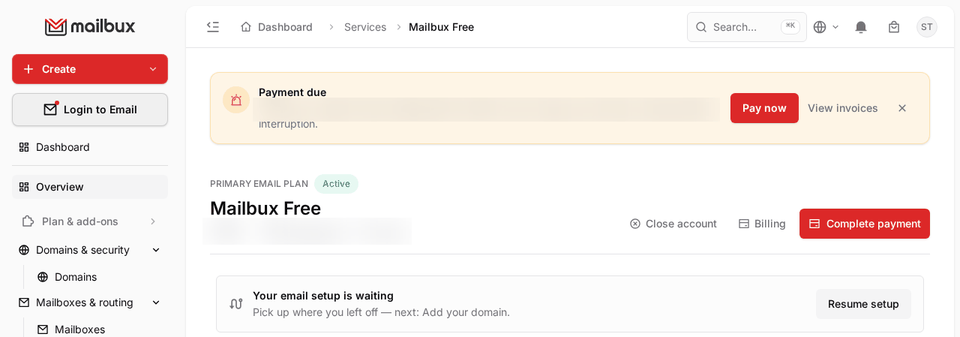
Until it is paid, your service stays on its current plan. Click Pay now or Complete payment to finish.
More detail: how to finish a pending upgrade (unpaid invoice).
Once your new plan is active, you can connect desktop and phone apps with the Mailbux IMAP, SMTP and POP3 server settings.
FAQ
Which payment methods can I use?
Card or PayPal.
Where do I see my invoices?
Dashboard > Invoices.
Need help?
Open a support ticket from your dashboard and we will help you finish the upgrade. New to Mailbux? Create a free account and upgrade whenever you are ready.