
Mailbox Full or Quota Exceeded? How to Fix It and Get Email Flowing Again
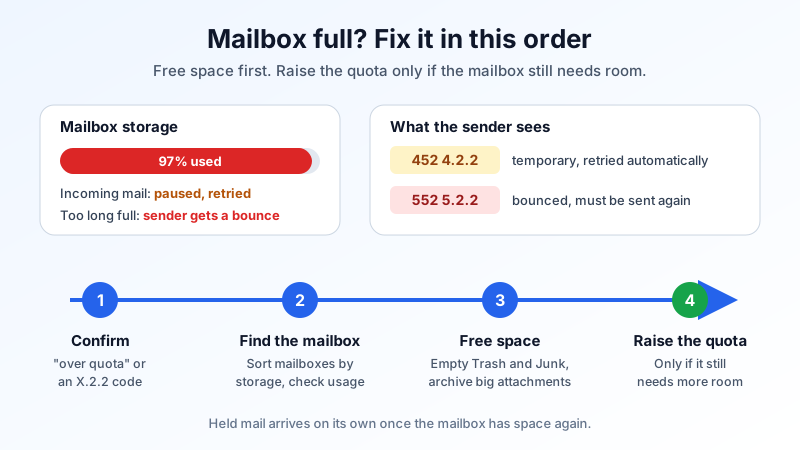
A customer calls to say their email bounced with "mailbox full". Or your phone shows "quota exceeded" when you try to move a message. Either way, a mailbox has reached its storage limit, and until something changes, new mail for that address stops arriving and your apps may refuse to file or save messages.
This guide explains what a full mailbox looks like from both sides (the sender and the mailbox owner), how to find out which mailbox is full, and the order to fix it in: clear space first, then raise the quota if the mailbox really needs more room. The steps for the Mailbux dashboard are included, but the approach works on any business email service.
The short version
- Confirm it is a full mailbox. Look for "mailbox full", "over quota" or a code containing
2.2(for example552 5.2.2or452 4.2.2) in the bounce or error. - Find the mailbox. Check the storage use per mailbox in your email dashboard.
- Free space. Empty Trash and Junk, then remove or archive the largest messages.
- Raise the quota only if the mailbox still needs more room after the clean-up.
- Prevent a repeat with a simple monthly check of the mailboxes closest to their limit.
What a full mailbox looks like
To the person sending you mail
Mail servers report a full mailbox with the enhanced status code X.2.2 ("mailbox full"). The first digit tells the sender whether it is final:
452 4.2.2or a "delivery delayed" notice: temporary. The sending server keeps retrying for a while. If space is freed in time, the message is delivered and nobody needs to resend it.552 5.2.2or "mailbox full" in a bounce: permanent for that message. The sender has to send it again after the mailbox has space.
Some servers retry for a long time before giving up, so a sender may only see a bounce hours or days after they sent the message. If you are the sender and you get a 5.2.2 bounce, there is nothing wrong with your own email setup: contact the recipient another way, or try again later. Our guide to SMTP bounce codes covers the other codes you may see next to it.
To the mailbox owner
- New mail stops arriving, while older mail is still there.
- Your email app shows "quota exceeded", "over quota" or "mailbox is full" when you move, copy or save a message.
- Sent messages may go out but your app cannot save a copy in the Sent folder, or a draft will not save.
- Colleagues or customers tell you their mail bounced.
How Mailbux handles it
When a Mailbux mailbox is full, delivery to it pauses instead of failing straight away. Incoming messages are held and retried for a limited time, so if you free space or raise the quota promptly, the held mail arrives on its own. If the mailbox stays full past that window, senders receive a non-delivery report and have to send again. That is why it pays to act on a full mailbox the same day.
Step 1: Find out which mailbox is full
A bounce tells you the address, but it is worth checking the whole account, because other mailboxes may be close to the limit too.
In Mailbux: open Manage → Mailboxes. The Storage column shows each mailbox's usage against its quota, and you can sort by Storage (highest first) to put the fullest mailboxes at the top. Manage → Usage shows storage use and quota allocation across the whole account, including shared mailboxes. If the usage shows as syncing, give it a moment to refresh.
There are two different situations, and they have different fixes:
- One mailbox has reached its own quota. Clean it up, or give it a larger quota from storage your plan still has free.
- The whole account has used its storage pool. Mailbox quotas are allocations inside one shared pool, so you can only make one mailbox bigger by freeing space or lowering the quota of another mailbox, or by moving to a larger plan.
Step 2: Free space (fastest fix)
Do this in webmail or a desktop email app connected over IMAP, so the changes apply on the server and every device sees them.
- Empty Trash. Deleted messages usually sit in Trash and still count toward the quota until Trash is emptied.
- Empty Junk/Spam after a quick look for anything legitimate.
- Find the largest messages. Sort a folder by size, or search for messages with attachments. A few old messages with large attachments often take more space than thousands of plain-text emails. Save attachments you need to your file storage first, then delete the messages.
- Check Sent. Sent folders grow quietly, especially if you regularly send quotes, drawings or photos.
- Look at automated mail. Newsletters, system alerts and notification mail add up. Delete the backlog and unsubscribe or filter what you do not read.
After the clean-up, check the mailbox usage again. Usage figures can take a short while to update.
Archive instead of deleting
If the mail must be kept, for example invoices or customer correspondence, move older years out of the live mailbox rather than deleting them. A desktop app such as Thunderbird or Outlook can copy old folders to a local archive on the computer. Keep that archive backed up, since it no longer lives on the mail server. Before you remove anything that falls under a legal or contractual retention period, check your email retention policy. If you later need those messages back in a mailbox, our guide to importing an old email archive shows how.
Step 3: Raise the mailbox quota
If the mailbox is used as intended and simply needs more room, give it a larger quota.
In Mailbux:
- Open Manage → Mailboxes.
- Open the actions for the mailbox and choose Set mailbox quota.
- Enter the new reserved quota size. The dialog shows the current usage and how much you can reserve, up to your plan storage pool.
- Save. Held mail is then delivered as it is retried.
If the dialog will not let you go higher, the account's storage pool is fully allocated. You can lower the quota of a mailbox that uses far less than it reserves, or compare options on the pricing page. Shared mailboxes have their own quota, which you set under Manage → Shared.
How much room should a mailbox get?
Base it on how the mailbox is actually used, not on a guess. A mailbox that mostly receives text messages grows slowly. One that receives scans, design files or photos every day can grow many times faster. Look at how much each mailbox grew over the last few months and leave headroom for at least the next few months. Our article on how much email storage a business needs walks through a simple estimate.
Prevent the next "mailbox full"
- Do a monthly check. Sort Manage → Mailboxes by storage and look at anything close to its quota.
- Share large files as links. Sending a link to a file instead of a large attachment keeps both your Sent folder and the recipient's inbox smaller.
- Filter automated mail. Server-side rules can file or remove alerts and newsletters before they pile up.
- Archive once a year. Move closed years to an archive while keeping what your retention policy requires.
- Watch role addresses. Shared inboxes like info@ or support@ collect mail from many people and usually fill up first.
Common mistakes
- Deleting mail but not emptying Trash. The space is not freed until Trash is emptied.
- Cleaning up on a POP3 phone or app. POP3 often works on a local copy, so deleting there may not free space on the server. Use webmail or an IMAP app.
- Raising the quota every time. If a mailbox fills up because of alerts or duplicate attachments, a bigger quota only delays the next full mailbox.
- Ignoring it for days. Held mail is only retried for a limited time. After that, senders get a bounce and some will not try again.
Checklist
- ☐ Bounce or error confirms a full mailbox (
X.2.2, "over quota") - ☐ Full mailbox found in Manage → Mailboxes, account checked in Manage → Usage
- ☐ Trash and Junk emptied
- ☐ Largest messages removed or archived, attachments saved first
- ☐ Quota raised if still needed
- ☐ Test message from an outside address received
- ☐ Monthly storage check on the calendar
Business email you can manage yourself
Mailbux gives you business email on your own domain with a dashboard that shows storage use per mailbox and lets you set mailbox quotas, change passwords, issue and revoke app passwords, and manage aliases, shared mailboxes, forwarders and server-side rules, plus two-factor authentication and the SPF, DKIM and DMARC values for your domain under Domains → Open DNS setup. See the plans on our pricing page.