
How to Move Your Business Email to a New Phone Without Losing Mail
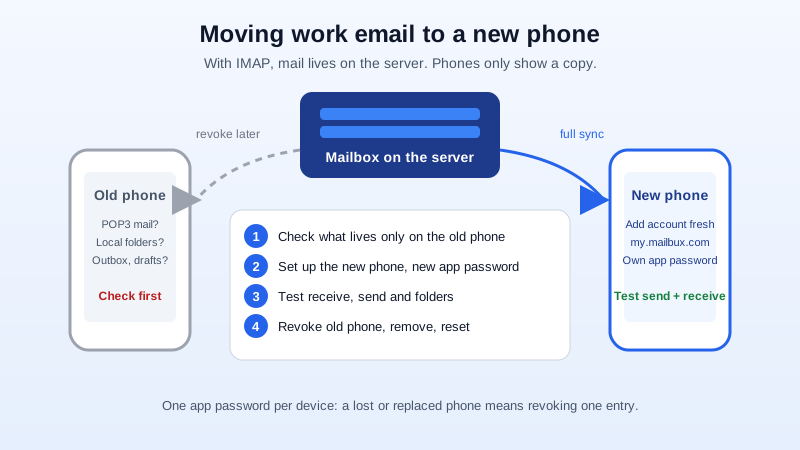
A new phone is supposed to be a nice day. Then work email is the one thing that does not come across: the account is missing, it asks for a password nobody remembers, or it shows up empty. Meanwhile the old phone sits in a drawer, still signed in to your business mailbox.
This guide covers moving business email on your own domain from an old phone to a new one, in the right order: check what lives only on the old phone, set up the new phone, confirm it works, then lock out the old one. It works whether you are going from iPhone to iPhone, Android to Android, or switching between the two.
The short version
- Before you wipe anything, check whether the old phone holds mail that is not on the server (POP3 accounts, local folders, unsent drafts).
- Set up the account fresh on the new phone instead of trusting a backup restore to bring the password along.
- Use a new app password for the new phone if two-factor authentication is on.
- Test receiving and sending on the new phone.
- Revoke the old phone's access, remove the account from it, then reset it.
Step 1: Check what lives only on the old phone
With an IMAP account, your mail, folders and sent items are stored on the mail server, and the phone only shows a copy. Add the same account to a new phone and everything appears again. Most people with a business mailbox are in this situation, and for them nothing needs to be copied phone to phone.
There are three exceptions worth a two-minute check before the old phone is reset:
- POP3 accounts. POP3 downloads mail to the device and often removes it from the server. If the old phone was set up with POP3, some messages may exist only on that phone. Open the account settings on the old phone and look for "POP" or "IMAP".
- Local folders. The iPhone Mail app can keep mailboxes "On My iPhone", and some Android email apps have local-only folders. Messages moved there are not on the server. Move anything you need back into a folder under your work account while the old phone is still working.
- Drafts and the Outbox. A message stuck in the Outbox or a draft saved only on the device will not follow you. Send or copy it first.
Also note anything you set up on the phone itself rather than on the server, such as an email signature in the phone's Mail settings. Those settings belong to the app, so you will need to add them again.
Step 2: Do not rely on the backup restore for work email
Phone transfer tools and backup restores bring over apps and many settings, but email accounts often arrive without their password, or half set up. The account may appear, then sit there with "cannot get mail" or a password prompt.
The reliable route is to remove any half-restored copy of the work account from the new phone and add it fresh. With IMAP, adding the account again downloads everything from the server.
Step 3: Set up the new phone
You have two choices on the new phone:
- The Mailbux app from the App Store or Google Play. You sign in with your full email address and it sets itself up, with push notifications built in. It works on every plan, Free included.
- The phone's own mail app (iPhone Mail, the Gmail app or another Android email app). This uses IMAP and SMTP, and IMAP/POP3 sign-in needs a paid plan; Free uses webmail, the Mailbux apps and SMTP.
If you use the phone's own mail app, these are the settings:
| Setting | Incoming (IMAP) | Outgoing (SMTP) |
|---|---|---|
| Server | my.mailbux.com | my.mailbux.com |
| Port | 993 | 587 |
| Security | SSL/TLS | STARTTLS |
| Username | Full email address | Full email address |
Step-by-step walkthroughs are in our iPhone and iPad setup guide and our Android setup guide. The most common slip when moving phones is typing the server name from memory: use my.mailbux.com for both incoming and outgoing.
Which password to enter
If two-factor authentication is off, the phone's mail app uses your normal mailbox password. If you do not remember it, change it first (in Mailbux: Manage → Mailboxes, then Change password), and remember that every other device then needs the new one too.
If two-factor authentication is on, a phone mail app usually cannot ask for a one-time code. Create a new app password for the new phone under Manage → App Passwords and give it a clear name such as "Sara's new iPhone". Do not reuse the app password from the old phone. A separate app password per device is what lets you cut off the old phone in Step 5 without touching anything else. Our two-factor authentication guide walks through it.
Step 4: Test before you touch the old phone
Keep the old phone working until the new one passes three quick checks:
- Receive: send a message to your work address from another account and see it arrive.
- Send: reply to it from the new phone. Receiving can work while sending fails, because many apps store the outgoing (SMTP) password separately.
- Folders: open Sent and one older folder and check that past mail is there. If Sent is empty but older mail shows, the app may be using its own local Sent folder; pick the server's Sent folder in the account's advanced settings.
If the new phone gets mail but the old phone stops, that is normal with POP3: whichever device downloads a message first takes it. One more reason to use IMAP on every device.
Step 5: Lock out the old phone
An old phone that is sold, handed down, traded in or left in a drawer still holds a working sign-in to your business email until you remove it. Do these in order:
- Revoke its app password. If the old phone used an app password, revoke that one in Manage → App Passwords. Only the old phone stops working.
- Remove the account from the old phone's mail app, or sign out of the Mailbux app.
- Reset the phone to factory settings before it leaves your hands. Signing out of accounts alone leaves other data behind.
If the old phone used your main mailbox password (no app password), the only way to stop it signing in is to change that password. If the phone is already gone, lost or stolen, change the password straight away and check for anything unusual, such as forwarders or filters you did not create. Our hacked account recovery steps list what to check.
For the person managing the company's email
When staff get new phones, the same few problems come back. A short routine helps:
- Ask people to tell you before they reset or hand in an old phone, not after.
- Use one app password per device, named after the person and device, so a lost phone means revoking one entry, not redoing everyone's setup.
- Avoid POP3 on phones. With IMAP on every device, a new phone never means lost mail.
- When someone leaves the company, revoke their devices' app passwords and change the mailbox password the same day.
Quick checklist
- Old phone: IMAP or POP3? Any local folders, drafts or Outbox items?
- New phone: add the account fresh (Mailbux app, or IMAP/SMTP with my.mailbux.com).
- 2FA on: new app password named for the new phone.
- Test receive, send and folders on the new phone.
- Revoke the old phone's app password, remove the account, factory reset.
Professional email on your own domain
Mailbux gives your team email on your own domain with webmail and mobile apps for iPhone and Android, two-factor authentication and app passwords for every device, and copy-and-paste SPF, DKIM and DMARC values under Domains → Open DNS setup. Compare the options on our pricing page.