
Domain Expired and Email Stopped Working? How to Get It Back
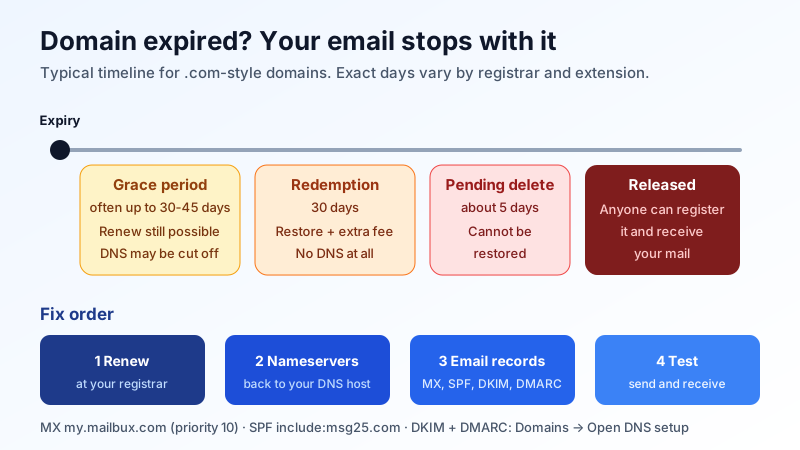
Your email worked yesterday. Today nothing arrives, people say their messages bounce, and some of the mail you send is refused. If nothing changed on your side, check one thing before anything else: has your domain name expired?
Your email address lives on your domain. When the domain registration lapses, the DNS records that tell the world where to deliver your mail stop working, even if your email plan is fully paid. This guide explains what happens, how to confirm it in two minutes, and the exact order of steps to get mail flowing again.
Why an expired domain stops email
Two things have to be renewed separately, and many people only think about one of them:
- The domain registration, paid to the company where you registered the name (your registrar).
- The email hosting, paid to your email provider, which holds the mailboxes and stored mail.
Every message sent to you starts with a DNS lookup of your domain's MX record. Under ICANN's Expired Registration Recovery Policy, registrars of generic domains (.com, .net, .org and others) must interrupt the domain's normal DNS after it expires, at the latest for the last eight days it can still be renewed. Some registrars do it on the first day. Some point the domain to a "this domain has expired" parking page with their own nameservers. Either way, your MX, SPF, DKIM and DMARC records are no longer what senders see.
Country domains (.uk, .de, .ca, .co.il and so on) follow their own registry rules, so the timing differs, but the effect on email is the same.
Symptoms that point to the domain, not the mailbox
- Everyone stopped receiving at once. All mailboxes on the domain are affected, not just one user.
- Senders get bounces such as "Host or domain name not found", "Domain not found" or "5.1.2 bad destination system address".
- Senders get delay warnings instead, if the domain's DNS times out rather than answering "does not exist". Their servers keep retrying for a few days before giving up, which looks like mail "disappearing". Our guide to delayed delivery warnings explains these messages.
- Your outgoing mail is rejected with "Sender address rejected: Domain not found". Many receiving servers refuse mail from a domain that does not resolve, and your SPF and DKIM records are gone too.
- Your website shows a parking or "renew now" page instead of your site.
- You can still sign in and read old mail. Stored messages are held by your email host, so a domain lapse on its own does not delete them. What stops is new mail in and out.
Confirm it in two minutes
- Look up the expiry date. Search your domain in a public RDAP or WHOIS lookup (ICANN runs one at lookup.icann.org). Check the "Expiration Date" and the status. Statuses such as
autoRenewPeriod,redemptionPeriodorpendingDeleteall mean the domain is past its expiry date. - Check the nameservers. If the lookup shows nameservers you do not recognise, often with "parking", "expired" or the registrar's name in them, the registrar has switched your DNS away.
- Check the MX record. Run an MX lookup for your domain. If it returns nothing, "NXDOMAIN", or a host that is not your email provider, mail cannot reach you.
- Search your inbox and spam folder for renewal notices. ICANN requires registrars of generic domains to send reminders about one month and one week before expiry, and another within five days after it. If they went to an old address, that explains why nobody noticed.
If the domain is not expired and the MX is correct, the cause is elsewhere. Work through why you are not receiving email on your custom domain instead.
The recovery windows (generic domains)
Exact days and fees vary by registrar and extension, so always check your registrar's renewal terms. The usual pattern for .com-style domains is:
- Grace period after expiry (often up to 30 to 45 days): you can still renew, sometimes with a late fee. DNS may already be interrupted.
- Redemption Grace Period (30 days, required by ICANN once the registrar deletes the name): only you can restore it, usually for an extra restore fee. DNS does not resolve at all during this time.
- Pending delete (about 5 days): the name can no longer be restored.
- Released: anyone can register the domain.
That last stage is the real danger. Whoever registers a dropped domain can set up their own mail server and receive messages meant for you, including password reset links for your bank, accounting and social accounts. Renew as early in this timeline as you can.
Fix it: the order that works
- Renew the domain at your registrar. Pay any restore fee if it is already in redemption.
- Check the nameservers came back. The ICANN policy says registrars must restore your DNS after renewal "immediately or as soon as is commercially reasonable", but if they swapped in parking nameservers, you may have to set your own nameservers again by hand.
- Check every email record is still there. If the zone was reset, add the records again:
- MX:
my.mailbux.comwith priority10 - SPF (TXT on the root of the domain):
v=spf1 include:msg25.com ~all, merged into one record if other services also send for you - DKIM and DMARC: copy the exact values for your domain from Domains → Open DNS setup in your Mailbux dashboard. DKIM is optional but improves deliverability.
- MX:
- Allow time for caches. Resolvers may remember the "domain does not exist" answer for a while. Most clear within a few hours, so do not keep changing records while you wait.
- Test both directions. Send from an outside address to your domain, and from your domain to an outside mailbox, then check the received message headers show SPF and DKIM passing.
- Tell your important contacts. Messages that bounced during the outage are not redelivered. Senders who only got delay warnings may still see their mail arrive, because their servers retry for several days. Anyone who got a hard bounce needs to send again.
If someone else already registered it
If the domain was released and taken, you cannot win it back through DNS. Move quickly: change the email address on every important account (bank, tax, payment, domain registrar, social media) to an address on a domain you control, turn on two-factor authentication everywhere, and warn customers and suppliers in writing that mail to the old domain no longer reaches you. Our account recovery checklist has the same priority order for locking down linked accounts.
How to make sure it never happens again
- Turn on auto-renew at your registrar, and keep the card on file current. An expired card is a common reason auto-renew fails.
- Renew for several years at a time for the domain your business runs on.
- Use a contact email on a different domain for the registrar account, or at least a shared address that more than one person reads. Notices sent to a former employee's mailbox help nobody.
- Put the expiry date in a shared calendar with reminders 60 and 14 days ahead.
- Ignore "domain expiry" letters from companies you do not use. Some send official-looking invoices that are really transfer offers at high prices. Renew only inside your own registrar account.
- Write down where everything is: registrar, DNS host and email host, with the people who can log in to each.
Quick checklist
- ☐ Expiry date and status checked in an RDAP/WHOIS lookup
- ☐ Domain renewed (or restored from redemption)
- ☐ Nameservers back to your own DNS host
- ☐ MX
my.mailbux.compriority 10 and SPFinclude:msg25.comin place - ☐ DKIM and DMARC values re-added from Domains → Open DNS setup
- ☐ Inbound and outbound test messages delivered
- ☐ Auto-renew on, payment card current, multi-year renewal set
Email on your own domain, with the records spelled out
Mailbux gives you business email on your own domain, with DKIM set up automatically and the exact MX, SPF, DKIM and DMARC values for each domain under Domains → Open DNS setup, so getting back online after a DNS change is a copy-and-paste job. Every mailbox gets two-factor authentication and app passwords for each device. See the plans on our pricing page.