
Shared Mailbox vs Alias vs Distribution List: Which One Should Your Team Use?
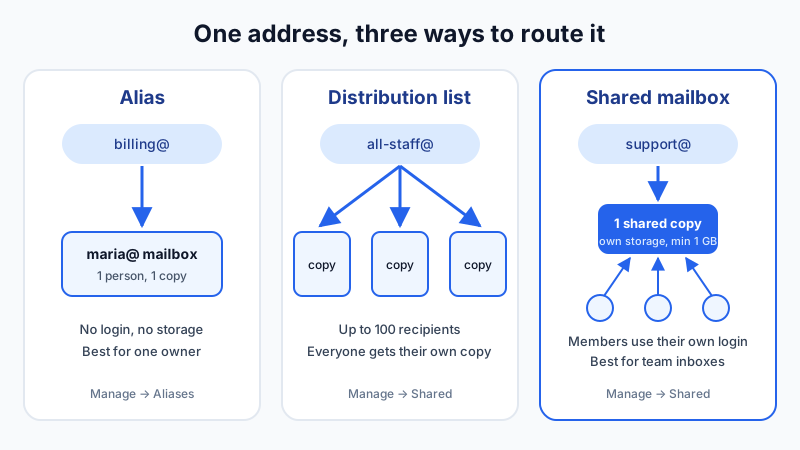
You want [email protected] to work for a team. Your email dashboard gives you four ways to do it: an alias, a forwarder, a distribution list, or a shared mailbox. They all "receive mail at an address", so they look interchangeable. They are not. The choice decides where messages are stored, who can see them, whether the team works from one copy or many, and whether the address uses plan storage.
This guide explains each option in plain terms, shows which one fits common situations, and covers how to set each one up in Mailbux.
The Short Answer
- Alias: one extra address that delivers into one existing mailbox. It has no login and no storage of its own. Best when one person handles the address.
- Forwarder: a rule that sends a mailbox's incoming mail on to one or more other addresses, with or without keeping a copy. Best for routing mail you also want to keep somewhere else.
- Distribution list: one address that sends a separate copy to every recipient on the list. No inbox, no storage. Best for "everyone needs to know" mail.
- Shared mailbox: a real mailbox with its own storage, opened by several team members from their own logins. Everyone works from one copy. Best for a team inbox where several people answer the same customers.
Alias: One More Address for One Person
An alias is a second (or tenth) address that lands in a mailbox you already have. If Maria owns [email protected], you can give her billing@ and invoices@ as aliases and everything arrives in her inbox. There is no extra password and no extra storage.
Use it when: a single person handles the address, or you want a role address now and may hand it to a team later.
Watch out for: an alias points at exactly one mailbox. If three people need to see support@, an alias alone means one person reads it and the others don't.
Full steps are in our guide to creating email aliases. In short: Manage → Aliases, pick the address and the mailbox it delivers into, save.
Forwarder: Send It On, Keep a Copy or Not
A forwarder takes mail arriving at an existing mailbox and passes it on to one or more destination addresses, which can be inside or outside your company. In Mailbux, Manage → Forwarders offers two modes:
- Forward and keep copy: the source mailbox receives the message normally and each destination gets a copy.
- Forward only: the message is redirected to the destinations and no copy stays in the source mailbox.
Use it when: someone needs mail from an address delivered to a personal or external inbox, for example an owner who wants a copy of everything sent to orders@.
Watch out for: every destination gets its own copy, so replies are not coordinated, and forwarding to outside providers can trip their spam checks. Read how to set up email forwarding for your business domain before routing mail off your domain. The Free plan includes 1 forwarder; paid plans allow more.
Distribution List: One Address, Many Copies
A distribution list (sometimes called a group address or mailing list) is an address with no inbox. Mail sent to it is copied to every recipient on the list. Think all-staff@, managers@ or alerts@.
Use it when: everyone on the list should get the message and act on it individually, like company announcements, on-call alerts, or a board that wants every report.
Watch out for: each person gets a private copy. If a customer writes to a list, two people may answer and nobody can see the other's reply. That's why a list is a poor fit for a customer-facing support@.
In Mailbux: open Manage → Shared, choose New distribution list, enter the list name, pick the domain and add recipients (separated by commas, spaces or new lines). A list can have up to 100 recipients, and recipients can be any valid email addresses. Lists don't use plan storage.
Shared Mailbox: One Inbox, One Copy, Many People
A shared mailbox is a full mailbox with its own address and storage, but nobody logs in to it directly. Instead, you add existing mailboxes as members, and each member opens the shared mailbox from their own account. Because everyone works on the same copy of each message, a message one person moves or files into a folder is moved for everyone.
Use it when: several people answer the same address, like support@, sales@ or bookings@, and they need to work from the same messages. It's also the cleanest way to give a role address to whoever holds the job: when someone leaves, remove them as a member. The mail stays.
Watch out for: a shared mailbox is a real mailbox, so it gets its own quota. It also isn't a help desk. If you need ticket numbers, assignment or internal notes, run a help-desk tool on top of your email.
In Mailbux: open Manage → Shared, choose New shared mailbox, set the name, domain and quota (at least 1 GB), and optionally a description such as "Support team". Then use Add member to pick the mailboxes that should have access. The domain has to be on your account first.
Side-by-Side Comparison
| Alias | Forwarder | Distribution list | Shared mailbox | |
|---|---|---|---|---|
| Stores mail itself | No (uses target mailbox) | Optional copy in source | No | Yes |
| Copies per message | 1 | 1 per destination (+ source copy if kept) | 1 per recipient | 1, shared |
| Who can read it | Owner of one mailbox | Each destination | Each recipient | All members |
| Team works from one copy | No | No | No | Yes |
| Uses plan storage | No | Only the kept copy | No | Yes, at least 1 GB |
| External recipients | No | Yes | Yes | No (members are your mailboxes) |
| Where in Mailbux | Manage → Aliases | Manage → Forwarders | Manage → Shared | Manage → Shared |
Which One Should You Use? Common Cases
- "Customers email support@ and three of us answer." Shared mailbox. Everyone works from the same messages instead of separate copies.
- "I'm a solo founder and want info@, sales@ and hello@." Aliases on your own mailbox. No extra storage, one inbox.
- "Every employee should get the holiday schedule." Distribution list (
all-staff@). - "Our accountant outside the company needs copies of invoices@." A forwarder in "Forward and keep copy" mode, so the original stays with you.
- "Server alerts should reach the on-call team, including a personal phone address." Distribution list. External addresses are allowed.
- "Mail sent to any misspelled address should still reach us." That's a catch-all, not one of the four above. Read up on the benefits and risks of catch-all addresses first.
Mistakes We See Often
- Sharing one password. Giving five people the login for
support@works until someone leaves. Then you have to change the password and re-set up every device. With a shared mailbox each person keeps their own login, and you just remove a member. - Using a list for customer conversations. Customers get duplicate or conflicting replies. Switch the address to a shared mailbox.
- Forwarding everything to a personal webmail account. Company mail ends up outside your control, and the outside provider may file forwarded mail as spam. Keep mail on your domain and give the person a mailbox or shared-mailbox membership instead.
- Creating a separate mailbox for every role. A person juggling
maria@,billing@andinvoices@as three logins will miss mail. Use aliases for one person and a shared mailbox for a team.
What It Costs on Mailbux
Aliases and distribution lists don't use storage. A shared mailbox is a mailbox, so it gets a quota from your plan's storage pool, like any user mailbox. Paid plans include unlimited business mailboxes with no per-user fees, and each mailbox uses at least 1 GB of plan storage. You can create as many team inboxes as your storage allows without paying per seat. Read more in unlimited email accounts vs. per-user plans. Mail is hosted on our servers in the EU, US and Canada.
Get Started
Create your Mailbux account, add your domain, then open Manage → Shared to set up your first team inbox or distribution list.