
How to Read Email Headers and Spot a Forged Message
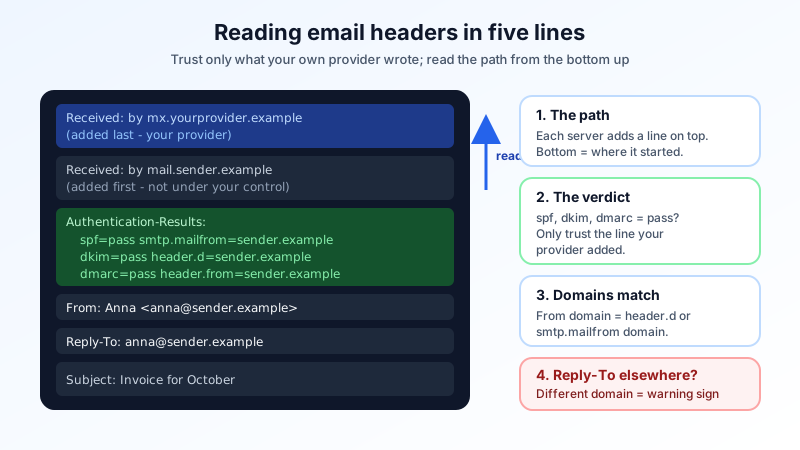
The name and address you see at the top of an email are just labels. Anyone can type any name into the From line, and phishing emails use this all the time. The message headers tell you where the email really came from. They list every server that handled it, and whether it passed the checks the receiving server ran: SPF, DKIM and DMARC.
Headers look scary the first time you open them. You only need to read about five lines. This guide shows how to open the full headers in common email apps, which lines matter, and how to tell a real message from a forged one in a couple of minutes.
The short version
- Open the full headers (often called "Show original", "View source" or "Internet headers").
- Find the Authentication-Results line added by your mail provider. Look for
spf=,dkim=anddmarc=. - Compare the domains. The domain in From should match the domain that passed DKIM (
header.d=) or SPF (smtp.mailfrom=). - Check Reply-To. If replies would go to a different, unrelated address, be careful.
- Read the Received lines from the bottom up to see the path the message took. Only trust the lines your own provider added.
How to open the full headers
Every email app keeps the headers, but most hide them. Here is where to find them in the apps people use most:
- Gmail on the web: open the message, click the three-dot menu next to Reply, and choose Show original. Gmail also shows a summary of SPF, DKIM and DMARC at the top of that page.
- Outlook for Windows (classic): open the message in its own window, then File → Properties. The headers are in the Internet headers box.
- Outlook on the web and the new Outlook: open the message, use the three-dot menu, then View → View message details.
- Apple Mail on Mac: select the message, then View → Message → All Headers, or Raw Source for the complete message.
- Thunderbird: select the message and choose View → Message Source (Ctrl+U on Windows and Linux, Cmd+U on Mac).
- Phones: most phone mail apps cannot show full headers. Open the same mailbox on a computer instead. Any desktop app that supports IMAP will do.
In webmail, look in the message menu for an option such as "view source", "show original" or "headers". If you cannot find one, open the mailbox in a desktop app as above.
What a header block looks like
Here is a shortened example of a real-looking, legitimate message. The domains and IP addresses are examples:
Return-Path: <[email protected]>
Received: from mail.supplier.example (mail.supplier.example [198.51.100.25])
        by mx.yourprovider.example with ESMTPS; Mon, 26 Oct 2026 07:41:12 +0000
Received: from laptop.supplier.example ([192.0.2.14])
        by mail.supplier.example with ESMTPSA; Mon, 26 Oct 2026 07:41:10 +0000
Authentication-Results: mx.yourprovider.example;
        spf=pass smtp.mailfrom=mail.supplier.example;
        dkim=pass header.d=supplier.example header.s=s1;
        dmarc=pass header.from=supplier.example
DKIM-Signature: v=1; a=rsa-sha256; d=supplier.example; s=s1; ...
From: Anna Weber <[email protected]>
Reply-To: [email protected]
To: [email protected]
Subject: Invoice 4471 for October
Message-ID: <[email protected]>
Date: Mon, 26 Oct 2026 08:41:09 +0100
Raw headers are often in a different order and much longer, with lines from spam filters, mailing lists and email apps. You can ignore most of them. These are the ones that matter.
The lines that matter
Authentication-Results: the verdict
This is the most useful line. The receiving server writes down whether the message passed each check:
- spf=pass means the sending server is allowed to send for the domain in
smtp.mailfrom(the Return-Path domain). - dkim=pass means the message carries a valid signature from the domain in
header.d, and the content was not changed on the way. - dmarc=pass means at least one of those passing domains matches the domain in the visible From address. This is the check that ties everything to what you actually see.
Other results you will meet: fail (the check failed), softfail (SPF says "probably not allowed"), none (the domain publishes no record) and temperror or permerror (a DNS problem on the sender's side). If you want the background on these three checks, see SPF, DKIM and DMARC explained.
Important: only trust the Authentication-Results line that names your own provider's server at the start. A sender can add a fake one further down that says everything passed.
From, Reply-To and Return-Path: three different addresses
- From is what your email app displays. It is the easiest part to fake.
- Reply-To is where your reply will go. A message "from" your bank or your CEO with a Reply-To at a free mail service or an unfamiliar domain is a classic sign of fraud.
- Return-Path (also called the envelope sender) is where bounces go. Newsletters and invoicing systems often use a different domain here, which is normal as long as DKIM or SPF passes and DMARC passes.
Received: the path the message took
Each server that handles a message adds a Received line at the top. So the bottom Received line is where the message started, and the top one is your own provider accepting it. Read them from the bottom up.
The lines your provider added are reliable. The lines below them were written by servers you do not control, and a sender can invent them. Use them as hints, not proof. The timestamps are also useful: a big gap between two lines shows where a message was delayed.
DKIM-Signature and Message-ID
The d= value in DKIM-Signature is the domain that signed the message. The Message-ID usually ends with the sending system's domain. Neither is proof on its own, but if both point to a domain that has nothing to do with the From address, look more closely.
Spotting a forged message: a worked example
This message claims to come from your own finance team:
Authentication-Results: mx.yourprovider.example;
        spf=fail smtp.mailfrom=yourcompany.example;
        dkim=none;
        dmarc=fail header.from=yourcompany.example
From: Finance Team <[email protected]>
Reply-To: [email protected]
Subject: Urgent: change of bank details before Friday
Three warning signs, each visible in seconds:
- dmarc=fail for your own domain. Real mail from your colleagues passes.
- No DKIM signature at all, and SPF fails.
- Reply-To points somewhere else. Your reply would go to the attacker, not to your finance team.
Do not reply or click anything. Delete it, warn the person it pretends to be, and if it uses your own domain, read how to stop email spoofing of your domain. A DMARC policy of quarantine or reject tells receiving servers to treat messages like this as junk or refuse them.
When everything passes but the mail is still fake
A passing result only proves the message came from the domain it shows. It does not prove that domain is who you think it is. Watch for lookalike domains: suppl1er.example instead of supplier.example, an extra word such as supplier-billing.example, or a different ending. Fraudsters register these and set up SPF and DKIM correctly, so every check says "pass". Read the domain in From letter by letter, especially on payment requests. Our guide to preventing phishing attacks covers the habits that catch these.
Using headers to fix your own sending problems
Headers are just as useful for checking your own domain. Send a message from your business address to a personal mailbox at another provider, open the full headers there and read the Authentication-Results line:
- spf=fail or softfail: the server that sent the message is not in your SPF record. If you send through Mailbux, your SPF record must include
include:msg25.com, and you should have only one SPF record; two SPF records on the same domain cause a permanent error. - dkim=fail or none: the DKIM record is missing, has a typo, or the message was changed after signing. Our guide to DKIM failures walks through the usual causes.
- dmarc=fail with SPF and DKIM passing: the passing domain does not match your From domain, which often happens with website forms or other services sending "as" you.
In Mailbux, the exact SPF, DKIM and DMARC values for your domain are under Domains → Open DNS setup. Your MX record should point to my.mailbux.com with priority 10.
Sharing headers with support
If you ask an email provider or IT person for help with a delayed, missing or suspicious message, send the full headers as text, not a screenshot. Copy everything from the first line down to the blank line before the message body. Headers can include names, email addresses and IP addresses of the people involved, so share them only with the people helping you.
Quick checklist
- ☐ Full headers opened (not just the From line)
- ☐ Authentication-Results from your own provider found
- ☐ spf, dkim and dmarc results noted
- ☐ From domain matches the domain that passed DKIM or SPF
- ☐ Reply-To checked against From
- ☐ From domain read letter by letter for lookalikes
- ☐ Received lines read bottom-up, only trusting your provider's lines
Business email that makes the right setup easy
Mailbux gives you business email on your own domain with the SPF, DKIM and DMARC values for your domain listed under Domains → Open DNS setup, two-factor authentication, app passwords for each device, and spam and phishing filters you can tune. See the plans on our pricing page.