
Business Email Account Hacked? Recovery Steps for the First Hour
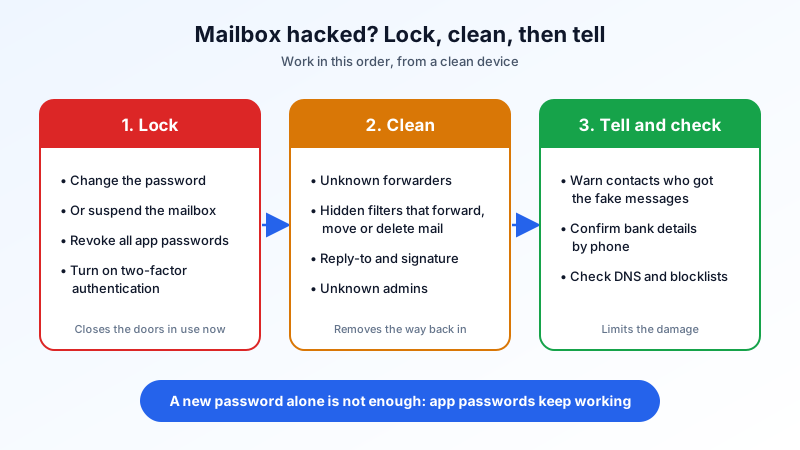
Your contacts say they got a strange invoice from you. Your Sent folder has messages you never wrote. Replies from clients have stopped arriving. These are the usual signs that someone else has signed in to a business mailbox. This guide is the order of steps to take back control in the first hour, then what to check so the attacker cannot come back.
Signs a business mailbox has been taken over
- Sent mail you did not write, often a fake invoice, a "shared document" link or a request to change bank details.
- Contacts report odd emails from you, or you get many bounces for messages you never sent.
- Mail you expect is missing. A hidden rule may be moving, deleting or forwarding it.
- Your password no longer works, or settings such as your signature or reply-to address have changed.
- Your apps suddenly ask for the password again after someone else changed it.
One sign alone is not proof. A message that only looks like it came from you may be spoofed from outside and never touched your mailbox. Check the Sent folder first: if the message is not there, read our guide on how to read email headers and spot a forged email before you start the steps below.
The first hour: take the mailbox back
Work in this order. Each step closes a door the attacker may still be using.
1. Use a clean device
Do the recovery from a computer or phone you trust. If the password was stolen by malware on one laptop, changing it on that same laptop can hand the new password straight over. Run a security scan on the device you suspect, and do not use it for email until it is clean.
2. Change the password
An admin can change any mailbox password from the dashboard: open Manage → Mailboxes, open the actions for the mailbox and choose Change password. Use a new, long password that you have never used anywhere else, and save it in a password manager. If the same old password was used for other services, change it there too, starting with your domain and DNS accounts and online banking.
If nobody needs to read the mailbox for now, you can Suspend it from the same mailbox actions. Sign-in is blocked until you restore it, which gives you time to finish the checks below.
3. Revoke app passwords
This is the step most people miss. App passwords are separate sign-in credentials for mail apps, and they keep working after the main password changes. Open Manage → App Passwords, revoke every app password for the affected mailbox, then issue a fresh one only for each device you trust and still use.
4. Turn on two-factor authentication
With two-factor authentication on, a stolen password alone is not enough to sign in. In webmail, open Settings → Security to turn it on. Our two-factor authentication guide walks through it step by step, including app passwords for phones and desktop apps.
Find what the attacker left behind
Attackers often set things up so they keep receiving your mail even after you change the password. Check all of these.
Forwarders
Open Manage → Forwarders and look for any forwarder sending copies of the mailbox's mail to an outside address. Delete anything you did not set up yourself.
Webmail filters
In webmail, open Settings → Filters. Look for rules you did not create, especially rules that forward, delete or move messages that contain words like "invoice", "payment", "bank" or a client's name. A rule like that hides the client's replies so they never see that the payment details were changed. Remove any rule you do not recognise.
Settings that change who gets the replies
Check the signature, the display name and any reply-to address. A changed reply-to sends your clients' answers to the attacker even when the email really came from your mailbox.
Admins and team members
If the person who was compromised can manage the email account, check Settings → Team Members and the Admins page for anyone you do not know, and remove them.
The Sent folder and Trash
Read what was sent, to whom and when. Check Trash as well, since attackers often delete what they sent. Write down the recipients: you will need the list in the next step.
Tell the people who need to know
- Contacts who received the fake messages. Send a short note from a clean mailbox: the message was not from you, do not open the link or pay anything, delete it. If they already clicked a link, they should change their own password.
- Your finance team and clients, if any message asked to change bank details. Confirm the real details by phone, using a number you already had, not one from the email.
- Your bank, straight away, if any money was sent. The sooner a transfer is reported, the better the chance of stopping it.
- Your data protection obligations. If personal data in the mailbox may have been read, the GDPR and the UK GDPR can require you to report a breach to the regulator within 72 hours of becoming aware of it. Check what applies to you.
Check that your domain still looks trustworthy
A burst of spam from your domain can make other servers trust it less for a while. Once the mailbox is secure, check that your domain's DNS records are still correct: MX pointing to my.mailbux.com with priority 10, a single SPF record that includes include:msg25.com, and DKIM and DMARC as listed under Domains → Open DNS setup. You can also look your domain up on the public blocklists and follow each list's delisting steps if it appears on one.
How it usually happens, and how to stop it next time
Most mailbox takeovers start with one of three things: a password reused from a site that was breached, a phishing page that looked like a real login, or malware on a device. The fixes are simple and cheap:
- A unique password for every mailbox, kept in a password manager.
- Two-factor authentication on every mailbox, with one named app password per device.
- Staff who know what a fake login page looks like; see how to prevent phishing attacks on business email.
- A habit of checking forwarders, filters and app passwords now and then, and when someone leaves the company.
- A rule that bank-detail changes are always confirmed by phone.
When you change passwords across a team, our guide on changing a business email password on every device helps you avoid locking out phones and printers.
Recovery checklist
- ☐ Working from a clean, trusted device
- ☐ Password changed in Manage → Mailboxes (or the mailbox suspended)
- ☐ All app passwords revoked; fresh ones only for trusted devices
- ☐ Two-factor authentication turned on
- ☐ Unknown forwarders removed in Manage → Forwarders
- ☐ Unknown rules removed in webmail Settings → Filters
- ☐ Signature, display name and reply-to checked
- ☐ Unknown team members or admins removed
- ☐ Contacts, finance and bank told; bank details confirmed by phone
- ☐ Data breach reporting duty checked
- ☐ MX, SPF, DKIM and DMARC checked; domain checked on blocklists
Business email with the controls you need
Mailbux gives you business email on your own domain with a dashboard to change passwords, suspend mailboxes, issue and revoke app passwords for each device, and manage forwarders, plus two-factor authentication, webmail filters and the SPF, DKIM and DMARC values for your domain under Domains → Open DNS setup. See the plans on our pricing page.