
How to Import an Old Email Archive (.pst, .mbox, .eml) into a New Mailbox
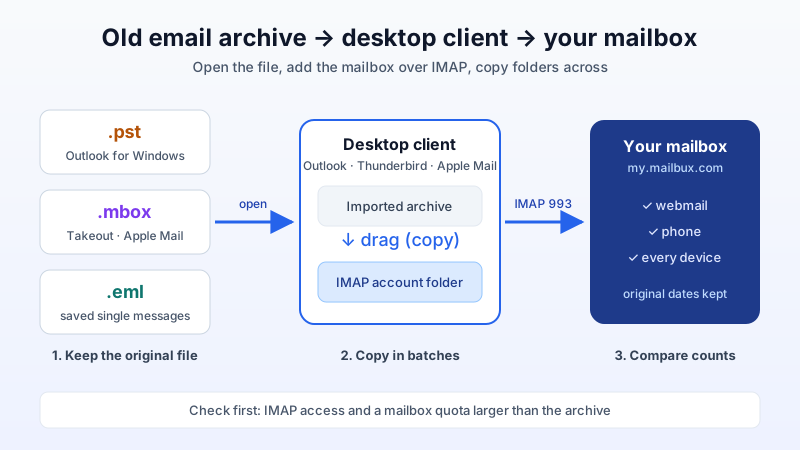
Not every mailbox move starts with a live server. Sometimes all you have is a file: an Outlook .pst from an old laptop, an .mbox export from Google Takeout or Apple Mail, or a folder full of .eml messages someone saved years ago. The good news is that all three can go back into a real business mailbox, so the old mail is searchable on every device again instead of sitting in a backup folder.
This guide shows the method that works for every format: open the archive in a desktop email client, connect that same client to your new mailbox over IMAP, and copy the folders across. The server stores what you copy, and your phone, webmail and other devices see it after the next sync.
First: do you need a file at all?
If the old account still works (you can still sign in to the previous provider), you usually do not need an export. A server-to-server copy is faster and keeps the folder structure intact. Use the free migration tool, or follow our guide to migrating business email without losing messages. Mailbux also offers free migration help for up to 10 mailboxes: open a ticket after you sign up.
Use the file method below when the old account is closed, the provider only gave you an export, or the mail only ever lived on one computer.
Know your file type
| File | Usually comes from | Easiest client to open it |
|---|---|---|
.pst | Outlook for Windows (classic), old exports from Exchange or Microsoft 365 | Classic Outlook for Windows |
.mbox | Google Takeout, Apple Mail, Thunderbird, many old hosts | Thunderbird or Apple Mail |
.eml | Single saved messages, drag-and-drop exports, some webmail downloads | Thunderbird |
.olm | Outlook for Mac | Outlook for Mac |
The client is only a bridge. You open the file in it, and you also add your new mailbox to it. Then you drag folders from one side to the other.
Before you import: three checks
- The mailbox can use IMAP. Desktop clients copy mail into the server over IMAP. On Mailbux, IMAP and POP3 are included on paid plans. The Free plan uses webmail, the Mailbux apps and SMTP.
- The mailbox has room. Compare the archive size with the mailbox quota. A 6 GB .pst needs a mailbox with more than 6 GB free. On paid plans, each mailbox uses at least 1 GB of plan storage, so check that the mailbox quota is larger than the archive before you start. See how much email storage a business really needs.
- You keep the original file. Work on a copy and keep the original until you have checked the result.
Step 1: add your new mailbox to the desktop client
Add the account as IMAP (not POP3, which downloads mail and does not upload it). The settings are the same in every client:
- Incoming (IMAP):
my.mailbux.com, port993, SSL/TLS - Outgoing (SMTP):
my.mailbux.com, port587, STARTTLS - Username: your full email address
Step-by-step screens are in our guides for Thunderbird and Microsoft Outlook. Wait until the account shows its Inbox and folders before you continue.
Step 2a: import a .pst with classic Outlook for Windows
- Go to File → Open & Export → Open Outlook Data File and pick the .pst. It appears as a separate item in the folder pane.
- In your new IMAP account, create a folder for the import, for example Archive 2015-2024.
- Drag folders from the .pst into that folder. Hold Ctrl while dragging to copy rather than move.
- Leave Outlook open until the status bar stops showing sync activity.
Avoid the File → Import/Export wizard for this. It imports into the local data file and can mix the old mail into folders you did not mean to touch. Dragging into a named IMAP folder keeps it clean. The new Outlook for Windows has more limited .pst support, so classic Outlook is the safer choice for large archives.
Step 2b: import .mbox or .eml with Thunderbird
- Install the free ImportExportTools NG add-on (Tools → Add-ons and Themes, then search for it).
- Right-click Local Folders and choose ImportExportTools NG → Import mbox file. For .eml files, choose Import all messages from a directory.
- Check the message count in Local Folders. Then drag the imported folder into your Mailbux account (hold Ctrl to copy).
A Google Takeout export is often a single huge file called All mail Including Spam and Trash.mbox. Import it as one folder and delete the spam and trash inside Thunderbird before copying, so you do not upload mail you never wanted.
Step 2c: import .mbox with Apple Mail
- Choose File → Import Mailboxes, select Files in mbox format and pick the file or folder.
- Mail creates an Import folder under On My Mac.
- Drag the folders from there into your Mailbux account in the sidebar.
If the account is not in Apple Mail yet, add it first with the same IMAP and SMTP settings from Step 1.
Step 3: check the result
- Compare counts. The folder in the client and the same folder in webmail should show the same number of messages.
- Search an old message in webmail by sender or subject. If it shows up, the copy reached the server and is not just sitting in the local client cache.
- Check dates. Imported messages keep their original dates, so sorting by date puts them in the right place.
- Open the mailbox on your phone. The new folder should appear after the next sync.
Tips for big archives
- Copy in batches. Move one year or one folder at a time instead of 80,000 messages in one drag. If the connection drops, you only redo one batch.
- Use a wired, stable connection and keep the computer awake until the client finishes.
- Stop if counts don't match. Re-drag only the missing folder. A sleeping laptop or a dropped connection is the usual cause.
- Clean up afterwards. When everything is verified, remove the local copy from the client (Local Folders, On My Mac or the opened .pst) so it does not use disk space twice. Keep the original archive file somewhere safe.
Quick answers
Can I upload a .pst in webmail? Use a desktop client as described above. It handles large archives reliably and shows you the counts before and after.
Will imported mail be sent again or notify anyone? No. Copying into a folder stores the messages. Nothing is sent and no one is notified.
Can I import into a shared mailbox? Yes, if you can sign in to it over IMAP. Add it as its own account in the client and copy into it the same way.
Bring your old mail to a mailbox that fits
Mailbux paid plans include unlimited business mailboxes (each uses at least 1 GB of plan storage), more domains than Free, and IMAP for exactly this kind of import. Your mail is hosted on servers in the EU, US and Canada. You can start on the Free plan with up to 7 mailboxes and upgrade when you are ready to import.