
Email Bounce 550 5.7.1 and Other SMTP Codes Explained
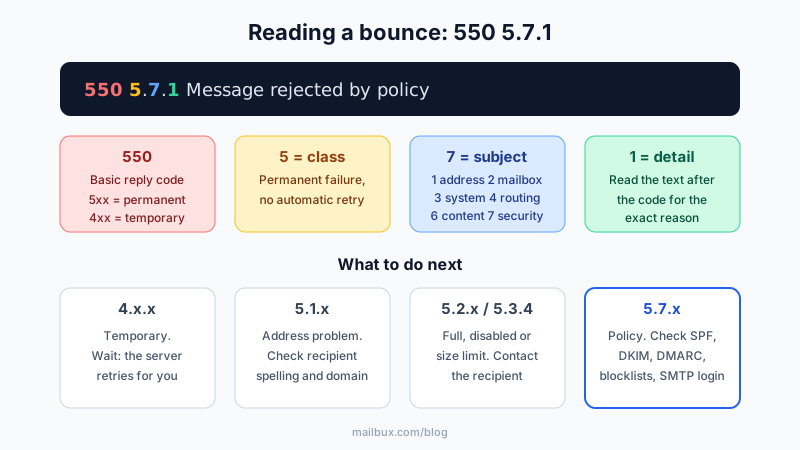
You send an email and a few seconds later a message from "Mail Delivery Subsystem" lands in your inbox: 550 5.7.1 Message rejected. That bounce is not random noise. It is the receiving server telling you, in a standard code, exactly why it refused your message. This guide shows you how to read the code, what the most common 550 and 5.x.x codes mean, and what to fix on your side.
How to read a bounce message in 30 seconds
Every bounce (also called a non-delivery report, or NDR) contains three useful pieces of information. Open the bounce and look for a line like this:
Remote server returned: 550 5.7.1 <[email protected]>: Recipient address rejected: Access denied- The basic reply code (550). Three digits defined by the SMTP standard. The first digit tells you the category:
2xx= accepted,4xx= temporary failure (the server will retry),5xx= permanent failure (it will not retry). - The enhanced status code (5.7.1). Three numbers separated by dots. The first repeats the class (5 = permanent, 4 = temporary). The second is the subject:
1= addressing,2= the mailbox,3= the mail system,4= network or routing,5= the mail protocol,6= message content,7= security or policy. The third number narrows it down. - The human-readable text. Everything after the codes. Receiving servers write their own text here, and it is often the most useful part: it may name the exact policy, a blocklist, or a link explaining the rejection.
Also note which server produced the bounce. If the bounce says "remote server" or names the recipient's domain, the recipient's side refused your message. If it comes from your own outgoing server before the message left, the problem is in your account or your email client settings.
Common 550 and 5.x.x bounce codes and what they mean
| Code | What it usually means | Where to fix it |
|---|---|---|
550 5.1.1 | The recipient address does not exist ("user unknown"). Typo, old employee, or the domain moved mailboxes. | Check the spelling; confirm the address with the recipient another way. |
550 5.1.2 / 5.4.4 | The recipient's domain cannot be found or has no working mail (MX) record. | Check the domain spelling. If it is correct, the recipient's DNS is the problem, not yours. |
550 5.1.0 / 5.1.8 | The sender address was rejected, often because your domain does not resolve or looks forged. | Check that your domain has valid MX and SPF records. |
550 5.2.1 | The recipient mailbox is disabled or not accepting mail. | Contact the recipient through another channel. |
552 5.2.2 | The recipient's mailbox is full. | Nothing on your side; tell the recipient or try later. |
552 5.3.4 | The message is too large for the receiving server. | Send a smaller attachment or a share link instead. |
550 5.7.1 | Rejected by policy: the receiving server does not accept your message, sender, or sending server. The text after the code says why (spam filter, blocklist, recipient restrictions, "relay not permitted"). | Read the text, then check authentication and reputation (steps below). |
550 5.7.23 / 5.7.26 | Authentication failed: SPF fail (5.7.23) or the message did not pass SPF/DKIM/DMARC checks (5.7.26). | Fix your SPF, DKIM and DMARC records. |
550 5.7.25 | The sending server has no valid reverse DNS (PTR) record. | Only applies if you send through your own server or a third-party app. |
421 4.7.0 / 451 4.7.1 | Temporary deferral, often rate limiting or greylisting. Not a final bounce. | Usually nothing; the message is retried automatically. |
Exact wording varies between providers, and some use codes in slightly different ways. When the code and the text disagree, trust the text.
550 5.7.1 in detail: the "policy" rejection
5.7.1 is the most common bounce people search for because it covers many different reasons. Look for these phrases in the bounce text:
- "Relay access denied" / "Relaying not permitted". The server you handed the message to does not deliver mail for that domain on your behalf. If you get this from your own outgoing server, your email client is probably sending without logging in. Turn on "outgoing server requires authentication" and use your full email address and password. Mailbux uses
my.mailbux.com, port 587 with STARTTLS, and authentication is required; see our IMAP, SMTP and POP3 server settings. - "Sender not authorized" / "SPF" / "DMARC policy". The recipient checked your domain's SPF, DKIM and DMARC records and your message failed. This is the most common fixable cause. See the authentication checklist below.
- "Listed at" / "blocked using" / "poor reputation". The sending IP or your domain is on a blocklist the recipient uses. Check your domain with a blacklist tool; a free blacklist check tool shows which lists, if any, include you.
- "Recipient restricted" / "not authorized to send to this group". The recipient address is an internal group or a mailbox that only accepts mail from approved senders. Only the recipient's administrator can change that.
- "Message content rejected" / "spam detected". The content triggered a filter: link shorteners, an attachment type the recipient blocks (such as .exe or macro files), or text that looks like phishing. Remove the trigger and resend.
The authentication checklist (fixes most 5.7.x bounces)
Large mailbox providers reject or junk mail from domains that are not properly authenticated. If you use Mailbux for your domain, check these records:
- MX:
my.mailbux.comwith priority10. - SPF: one TXT record on your root domain that includes
include:msg25.com, for examplev=spf1 include:msg25.com ~all. If you also send from other services (a newsletter tool, your website), merge them into the same record. Two SPF records on one domain make SPF fail; our guide to fixing multiple SPF records shows how to merge them. - DKIM: copy the exact DKIM record shown in your dashboard under Manage → DNS. A truncated or mistyped key is the usual reason DKIM fails; see DKIM fail: causes and fixes.
- DMARC: add the DMARC record from Manage → DNS. Start with a monitoring policy and tighten it once your reports look clean.
DNS changes can take from a few minutes to several hours to be seen everywhere. Wait before resending to the same recipient, and test with a different external address first.
Bounces you did not cause: backscatter
Sometimes you receive bounces for messages you never sent. Spammers can forge any address as the "From" on their own mail, and when that mail is rejected, the bounce goes to the forged address. This is called backscatter. It does not mean your account was used. Check your Sent folder: if the original message is not there and the bounce shows a server you do not use, it is backscatter. A strict DMARC policy on your domain makes it harder for others to forge your address over time.
If the original message is in your Sent folder and you did not write it, change your password immediately and turn on two-factor authentication.
A quick decision path
- Starts with 4? Temporary. Wait; the message is retried automatically. Act only if the same deferral repeats for more than a day.
- 5.1.x? Address problem. Check the spelling of the recipient address and domain.
- 5.2.x or 5.3.4? Recipient-side limits (full or disabled mailbox, size). Contact the recipient or send a smaller message.
- 5.7.x? Policy or authentication. Read the text, check SPF/DKIM/DMARC, check blocklists, and make sure your email client logs in to send.
Still landing in spam rather than bouncing? That is a related but different problem; our spam troubleshooting guide covers it.
Business email that is set up correctly from day one
Mailbux shows the exact DNS records for your domain under Manage → DNS, so MX, SPF, DKIM and DMARC are copy-and-paste. Paid plans include unlimited business mailboxes (each mailbox uses at least 1 GB of plan storage), and your mail is hosted on servers in the EU, US and Canada. You can start on the Free plan with up to 7 mailboxes.