
When an Employee Leaves: What to Do With Their Business Email Account
An employee hands in their notice. Their laptop and keycard are easy: you collect them on the last day. Their email account is harder. Customers keep writing to it, it may be the login for supplier portals and software accounts, and it holds years of records the business may need to keep. Delete it too early and you lose mail and records. Leave it alone and a former employee can still read company mail from their phone.
This guide gives you a practical offboarding order for a departing employee's business email: what to check before they leave, what to lock on the last day, how to keep incoming mail flowing to the right person, and when it is safe to delete the mailbox. Each step shows where to do it in the Mailbux dashboard, but the order works on any business email service.
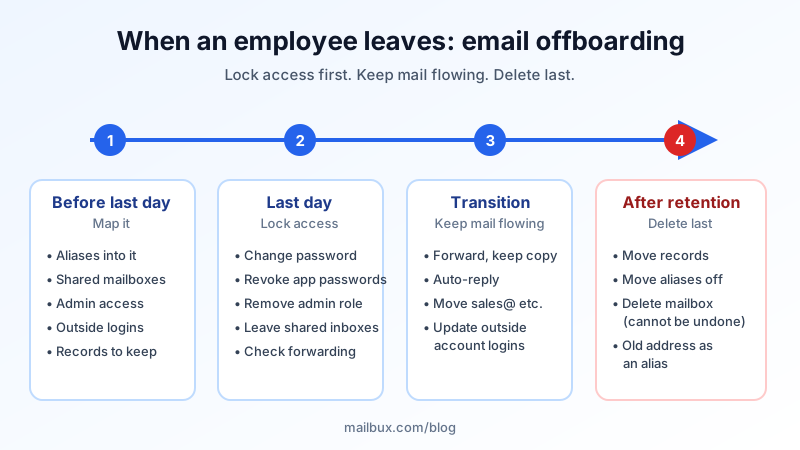
The short version
- Before the last day: list everything tied to the address: aliases, shared mailboxes, lists, admin access, and outside accounts that use it as a login.
- On the last day: change the mailbox password, revoke its app passwords, remove admin access and shared-mailbox memberships, and check for forwarding to outside addresses.
- The next weeks: keep the address receiving mail. Forward it to a manager, set an auto-reply, and move role addresses like sales@ to someone else.
- Later: once your retention period has passed and the records you need are moved, delete the mailbox and, if you like, keep the address alive as an alias.
Step 1: Before the last day, map what the address touches
Most offboarding problems come from something nobody knew was connected to the address. Spend ten minutes with the person (or their manager) and write down:
- Aliases that deliver into this mailbox. If billing@ or support@ is an alias pointing at the leaver's mailbox, it will stop delivering when that mailbox is deleted. Check Manage → Aliases.
- Shared mailboxes and distribution lists they belong to. Check Manage → Shared. A leaver who stays a member of the support inbox still has a way into customer mail.
- Admin access. Did they help run the email account itself? Note any access under Settings → Team Members or the Admins page.
- Outside accounts that use the address as a login. Domain registrar, DNS host, payment processor, cloud storage, ad accounts, social profiles, software subscriptions. Password resets for all of these go to this inbox, so the business needs to keep receiving that mail even after the person is gone. Move the important ones to a role address (for example [email protected]) before they leave.
- Which mail must be kept. Contracts, invoices, customer conversations and HR records may fall under your retention rules. See our email retention policy guide for how long common record types are typically kept.
Also ask for a short handover note: open conversations, key contacts, and anything waiting on a reply.
Step 2: On the last day, lock access
Do these steps at the end of the person's final working day, or immediately for an unplanned departure.
Change the mailbox password
In Manage → Mailboxes, open the mailbox actions and choose Change password. You can generate a strong password or set your own (12 to 128 characters). Any phone, tablet or desktop app still using the old password stops syncing until it is updated with the new one, which is exactly what you want here. Store the new password with whoever will look after the mailbox.
Revoke app passwords
App passwords are separate device credentials that keep working after a main password change if you leave them in place. On the App Passwords page, find any issued for this mailbox and revoke them. If you use two-factor authentication (and you should), this is the step people forget.
Remove admin access and memberships
- Remove the person from Settings → Team Members, and from the Admins page if they had portal access. Removing someone revokes their access to manage the account. It does not affect mailboxes or mail data.
- In Manage → Shared, remove them from every shared mailbox and distribution list they were a member of.
Check forwarding and rules
Look in Manage → Forwarders and in the mailbox's server-side rules for anything sending a copy of mail to an outside address, such as a personal Gmail account. A forwarding rule set up months ago will keep copying company mail out after the person leaves. Delete any you did not create on purpose.
Suspend instead, if nobody needs the mailbox right now
If no one needs to read the mailbox yet, you can Suspend it from the mailbox actions. Sign-in is blocked until you restore it. Changing the password is usually the better choice when a manager will take over the inbox, because they can then sign in and work from it.
Step 3: Keep the address working for the transition
Customers and suppliers will keep writing to the old address for weeks or months. Don't let that mail go unanswered.
- Forward new mail to the person taking over. In Manage → Forwarders, add a forwarder on the leaver's mailbox using Forward and keep copy, so the original stays in the mailbox (useful for records) and the manager gets a copy. Choose Forward only if you don't want copies building up in the old mailbox.
- Set an auto-reply. Sign in to the mailbox in webmail with the new password and set a vacation message in the webmail settings: "Maria no longer works at Example Ltd. For orders, please write to [email protected]. Your message has been passed to our team." Keep it short. Leave out the reason they left, a personal phone number, or a "left on" date.
- Move role addresses. If sales@ or support@ was an alias on the leaver's mailbox, point it at the new owner's mailbox in Manage → Aliases. If several people should handle it, a shared mailbox is the better fit. Our shared mailbox vs alias vs distribution list guide explains the difference.
- Update outside accounts. Work through the list from Step 1 and change the login email on each service to a role address the business controls.
Which option fits? Suspend, change password, forward or delete
| Action | What it does | Use it when |
|---|---|---|
| Change password | Locks the leaver out; whoever has the new password can still use the mailbox | A manager is taking over the inbox |
| Suspend | Blocks sign-in until you restore it | Nobody needs to work in the mailbox yet |
| Forwarder (keep copy) | New mail reaches the new owner and stays in the old mailbox too | The transition period, while contacts still use the old address |
| Delete mailbox | Permanently deletes all mail stored in it; aliases pointing to it stop delivering | Retention period has passed and needed records are moved |
| Alias after deletion | The old address delivers into another person's mailbox | You want late mail to keep arriving without keeping the old mailbox |
Step 4: Later, decide when to delete
Deleting a mailbox cannot be undone. The dashboard warns you that all mail stored in it is permanently deleted and that aliases pointing to it stop delivering. So before you delete:
- Check your retention rules. If any mail in the mailbox still falls inside a retention period, or relates to a dispute, audit or claim, keep it.
- Move what must be kept. Add the mailbox and the new owner's mailbox to the same mail app over IMAP and drag the folders across, or export them to an archive file. Our guide to importing old email archives covers the file formats if you later need to bring them back.
- Move aliases off the mailbox so they don't stop delivering.
- Delete the mailbox in Manage → Mailboxes.
- Optionally keep the address alive. Once the mailbox is gone, you can add the old address as an alias in Manage → Aliases that delivers into the manager's mailbox. Late messages still arrive, and there is no separate mailbox to secure.
Many small businesses keep the forwarder and auto-reply in place for one to three months, then move records and delete. Pick a date, write it in the offboarding checklist, and stick to it.
A note on privacy
A leaver's mailbox can contain personal messages as well as business mail. Depending on where you operate, employment and data protection rules may limit who can read it and why. A simple written rule helps: company email is for company business, mail is reviewed only to continue work and meet record-keeping duties, and obviously personal messages are not read further. For a specific situation, check with a local employment adviser.
Common mistakes
- Deleting the mailbox on day one. Records, customer history and password-reset mail disappear with it.
- Changing the password but leaving app passwords active. A phone set up with an app password can keep syncing.
- Forgetting forwarding rules. An old rule can quietly copy mail to a personal account for months.
- Giving the address to a new hire straight away. They will receive the previous person's private and business mail. Use a fresh address or a role address instead.
- Using one shared password for several people. When one person leaves, you have to change it for everyone. Personal mailboxes plus shared mailboxes avoid this.
Offboarding checklist
- ☐ Aliases, shared mailboxes, lists and admin roles listed
- ☐ Outside accounts moved to a role address
- ☐ Mailbox password changed, new password stored safely
- ☐ App passwords revoked
- ☐ Removed from Team Members, Admins, shared mailboxes and lists
- ☐ Outside forwarding and rules checked
- ☐ Forwarder to new owner and auto-reply set
- ☐ Role aliases pointed to new owners
- ☐ Delete date set, records moved before deletion
Offboarding is easier when the company owns the mail
All of this assumes each person has a mailbox on your own domain that the business controls. Mailbux gives you business email on your own domain with a dashboard to create, suspend and delete mailboxes, change passwords, revoke app passwords, and manage aliases, shared mailboxes and forwarders, plus two-factor authentication and the SPF, DKIM and DMARC values for your domain under Domains → Open DNS setup. See the plans on our pricing page.