
Email Sent but Not Received? Sender-Side Checks That Find the Cause
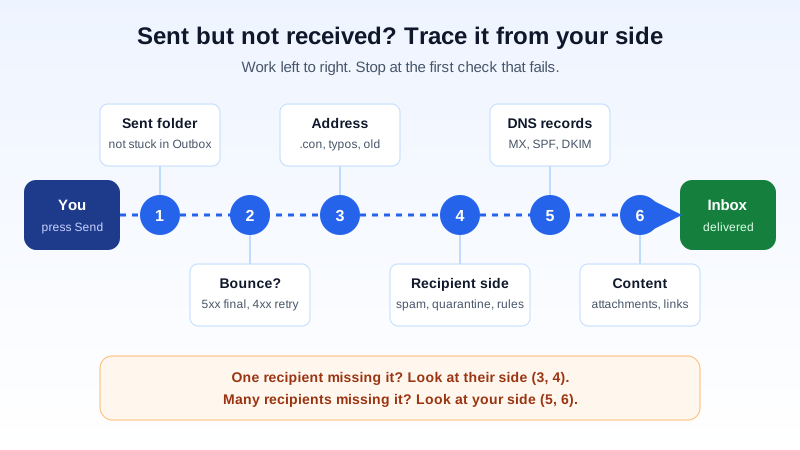
You sent the email. The recipient says it never arrived. No bounce, no error, nothing. Before you resend it five times or blame the other side, run through a short set of checks from your end. Most "sent but not received" cases come down to one of six causes, and you can rule out most of them in a few minutes.
This guide is for the sender. If you are the one waiting for mail that never shows up, start with our guide on fixing email not received on a custom domain instead.
The short version
- Check that the message is in your Sent folder, not stuck in the Outbox.
- Look for a bounce or delay notice in your Inbox and Spam folder.
- Read the recipient address character by character.
- Ask the recipient to check Spam, Junk, quarantine and their own filters.
- Check your domain's MX, SPF, DKIM and DMARC records.
- Work out whether it is one recipient or many. That tells you where the problem is.
Step 1: Is it really in your Sent folder?
"I sent it" sometimes means "I pressed Send". If the message is sitting in the Outbox of your phone or desktop app, it never left your device. Common reasons:
- The app has an old password saved for outgoing mail. This often happens after a password change on another device.
- The outgoing server settings are wrong. For Mailbux the outgoing server is
my.mailbux.com, port587, STARTTLS, with your full email address as the username and authentication turned on. - The device was offline when you pressed Send, and the app is waiting to retry.
A quick test: sign in to webmail and look at the Sent folder there. Webmail shows what the server actually sent. If the message is in the app's Sent folder but not in webmail's, the app may be saving a local copy only.
Step 2: Did you get a bounce or a delay notice?
When the receiving server refuses a message, your mail server sends you a report. It usually comes from "Mail Delivery System" or "MAILER-DAEMON" with a subject such as "Undeliverable" or "Delivery Status Notification". These notices can land in your Spam folder, so check there too.
- A code starting with 5 (for example
550 5.1.1) is a permanent refusal. The message will not be retried. Our guide to 550 and other bounce codes explains the common ones. - A code starting with 4 is temporary. Your server keeps trying, and the message often arrives later. See what a delayed delivery warning means.
The most useful part of a bounce is the line where the remote server explains itself, often after the code. It might say the mailbox does not exist, is full, or that the message failed an authentication check. Fix that exact cause before you resend.
Step 3: Read the address one character at a time
A surprising share of missing emails go to an address that is almost right. Look for:
.coninstead of.com, or.coinstead of.co.uk- A swapped or doubled letter in the name:
jonh@,annna@ - An autocompleted old address, such as a former employee or a company's old domain
- A space or invisible character copied from a document or a PDF
If the domain part is wrong but happens to exist, you may get no bounce at all, because a different server accepted the message. Type the address fresh rather than relying on autocomplete, and delete stale entries from your contacts.
Step 4: Ask the recipient to look in the right places
No bounce usually means the receiving server accepted the message. From there it can still be hidden from view. Ask the recipient to check:
- Spam or Junk in webmail, not only in their phone app, which may not show every folder
- Quarantine: many company mail systems hold suspicious messages in a quarantine that only IT can see
- Their own filters and rules, which can move or delete mail automatically
- Tabs such as "Other" or "Promotions" that hide mail from the main view
- Search across all folders for your address or the subject line
If they find it in Spam, ask them to mark it as "not spam" and add your address to their contacts. That helps future messages, but you should still check your own setup in the next step.
Step 5: Check your domain's authentication
Receivers trust mail from domains that prove who they are. If your records are missing or wrong, your messages are more likely to go to Spam or be refused. For a domain on Mailbux, check:
- MX:
my.mailbux.comwith priority 10 (required) - SPF: one SPF record that includes
include:msg25.com(required). Two SPF records on the same domain cause a permanent error, so merge them into one. - DKIM: optional, improves deliverability
- DMARC: a policy record that tells receivers what to do with mail that fails the checks
The exact values for your domain are in the Mailbux dashboard under Domains → Open DNS setup. Then send a test to a personal mailbox at another provider and open the message headers. The Authentication-Results line should show SPF, DKIM and DMARC passing; our guide to reading email headers shows where to look.
Step 6: Look at the message itself
If the setup is right and only some messages go missing, the content may be the trigger. Things that make receiving filters suspicious:
- Large attachments, or attachment types that many companies block outright, such as executable files or archives with macros. Send a share link instead.
- Link shorteners, or link text that shows one address while the link goes to another
- A message that is just an image with little or no text
- A subject line in all capitals or full of urgency words
- Sending the same message to many people at once with everyone in the To field
A simple test: send a plain-text version with no attachment and no links. If that one arrives, add things back one at a time until you find what the receiver objects to.
One recipient or many?
This is the question that tells you where to look next.
| What you see | Likely cause | What to do |
|---|---|---|
| Only one person, everyone else receives fine | Their filter, quarantine, a typo, or their mailbox is full | Steps 3 and 4; ask their IT to search their logs |
| Everyone at one company | That company's filter or policy | Ask their IT team to check quarantine and allow your domain |
| Recipients at several providers | Your DNS records or your message content | Steps 5 and 6 |
| Nothing leaves at all | App settings or saved password | Step 1 |
If many recipients are affected, also check whether your domain appears on a public blocklist.
What to send the recipient's IT team
When a company's mail team searches their logs, vague reports slow them down. Give them:
- Your sending address and the recipient's exact address
- The date and time you sent it, with your time zone
- The subject line
- The
Message-IDfrom the headers of the copy in your Sent folder
The same details help if you contact our support team about a message that seems lost. Include any bounce text you received, copied in full.
Should you resend?
Only after you know why the first one failed. If a bounce says the address does not exist, resending changes nothing. If a delay notice says the server is retrying, a resend gives the recipient two copies. Fix the cause, then send once. If the matter is urgent, call or message the person to tell them an email is on its way.
Quick checklist
- ☐ Message is in the Sent folder in webmail, not stuck in the Outbox
- ☐ Inbox and Spam checked for a bounce or delay notice
- ☐ Recipient address read character by character
- ☐ Recipient checked Spam, Junk, quarantine and their filters
- ☐ MX, a single SPF record and DKIM checked under Domains → Open DNS setup
- ☐ Plain-text test sent without attachments or links
- ☐ Worked out: one recipient, one company, or many
Business email that is easy to set up right
Mailbux gives you business email on your own domain, with the SPF, DKIM and DMARC values for your domain listed under Domains → Open DNS setup, two-factor authentication and app passwords for each device. See the plans on our pricing page.