
Email Delivery Delayed? What the Warning Means and What to Do
You sent an important email and, a few hours later, a message came back with a subject like "Delivery Status Notification (Delay)", "Delivery delayed" or "Message not delivered yet". It is not a bounce. It is a warning: your email has not arrived yet, and the sending server is still trying.
This guide explains what a delay warning means, how to read the code inside it, what usually causes it, and when you need to do something about it.
The short version
- A delay warning is not a failure. The message is still queued and will be retried automatically.
- Look for a code that starts with 4, such as
421,450,451or4.7.0. A 4 means "temporary, try again later". - Do not resend the email yet. If you do, the recipient may get it twice.
- Wait for one of two outcomes: the message arrives (no further notice), or it finally bounces with a code that starts with 5.
- Act when the same delay keeps happening to the same recipient, or when messages to many different recipients are delayed.
Delay warning vs bounce
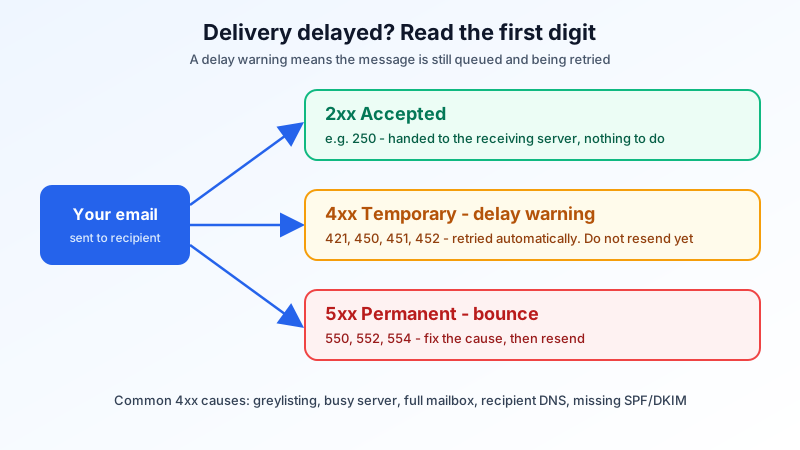
Mail servers answer with three-digit reply codes. The first digit tells you almost everything:
| First digit | Meaning | What the sending server does |
|---|---|---|
| 2 (for example 250) | Accepted | Handed over to the receiving server |
| 4 (for example 421, 450, 451, 452) | Temporary problem | Keeps the message, tries again later, and may send you a delay warning |
| 5 (for example 550, 552, 554) | Permanent problem | Stops trying and sends you a bounce |
Many replies also carry an extended code such as 4.2.2 or 4.7.1. The same rule applies: a leading 4 is temporary, a leading 5 is permanent. If you got a 5.x.x bounce instead, see our guide to SMTP 550 bounce codes.
How to read a delay warning
Open the warning and look for three things:
- The recipient address that is delayed. Check it for typos first. A misspelled domain can produce a long series of delays before it finally bounces.
- The remote server's reply, often under a heading such as "Diagnostic-Code", "Remote server returned" or "Reason". This is the text the receiving server sent back.
- How long the message has been waiting and, sometimes, when the sending server will give up.
A typical delay reply looks like this (the server name is an example):
Diagnostic-Code: smtp; 451 4.7.1 Greylisted, please try again later
Remote-MTA: dns; mx.recipient.example
Common causes and what they mean
- Greylisting (
450or451, often with the word "greylisted"): the receiving server refuses the first attempt from a sender it has not seen before, on purpose. Real mail servers retry, and much spam does not. A later attempt is usually accepted, so the delay is often minutes, sometimes longer. You do not need to do anything. - The receiving server is busy or rate limiting (
421, "too many connections", "try again later"): the receiving side is slowing down incoming mail. This normally clears on its own. - The receiving server is down or unreachable ("connection timed out", "connection refused"): the recipient's mail server is offline or their network has a problem. There is nothing to fix on your side.
- The recipient's mailbox is full (
452or4.2.2, "mailbox full", "over quota"): the message waits until the recipient frees space. If it lasts, contact the person another way. - The recipient domain's DNS is broken ("DNS lookup failed", "temporary failure in name resolution", no MX record found): the recipient's domain may have expired, or their MX records are being changed. This is common right after a company switches email providers.
- The receiver does not trust the message yet (
4.7.xwith words such as "temporarily deferred", "rate limited" or "unauthenticated"): some large providers defer mail that fails or lacks SPF, DKIM or DMARC before they reject it outright. This one is worth checking on your side.
When a delay is yours to fix
Most delays are on the receiving side and clear on their own. Look at your own setup when:
- messages to many different recipients are delayed, not just to one company;
- the reply mentions authentication, SPF, DKIM, DMARC or "unauthenticated";
- the delays started right after you changed DNS records or moved to a new email host.
If you send through Mailbux, two records are required: an MX record pointing to my.mailbux.com with priority 10, and a single SPF record that includes include:msg25.com. Two SPF records on the same domain cause a permanent error, so merge them into one. DKIM is optional and improves deliverability. The exact SPF, DKIM and DMARC values for your domain are under Domains → Open DNS setup. Our guide on checking that your email DNS records are correct shows how to test them.
To see what receivers think of your mail, send a test message to a personal mailbox at another provider and open its headers. Our guide to reading email headers shows where the SPF, DKIM and DMARC results appear.
Should you resend?
Not while the message is still being retried. The original will usually arrive, and a resend means the recipient gets two copies. Resend only after you receive a final bounce, and fix the cause first: a typo in the address, a full mailbox, or a DNS problem. If the email is urgent, reach the person another way and tell them a message is on its way.
Waiting for an email that is delayed
If you are the one waiting for an email, the sender's server is the one retrying, so you will not see a warning. Ask the sender whether they got a delay notice, and check your Spam or Junk folder. If you recently changed your MX records, some senders may still use the old records for a while; see our guide on mail missing after an MX change.
Quick checklist
- ☐ The code starts with 4 (temporary), not 5 (permanent)
- ☐ Recipient address checked for typos
- ☐ Remote server's reply read (greylisting, busy, mailbox full, DNS)
- ☐ Not resent while retries are still running
- ☐ Many recipients delayed? Check MX, a single SPF record and DKIM
- ☐ Final bounce received? Fix the cause, then resend
Business email that makes the right setup easy
Mailbux gives you business email on your own domain with the SPF, DKIM and DMARC values for your domain listed under Domains → Open DNS setup, two-factor authentication, app passwords for each device, and spam and phishing filters you can tune. See the plans on our pricing page.