
DKIM Fail: What Each Error Means and How to Fix It
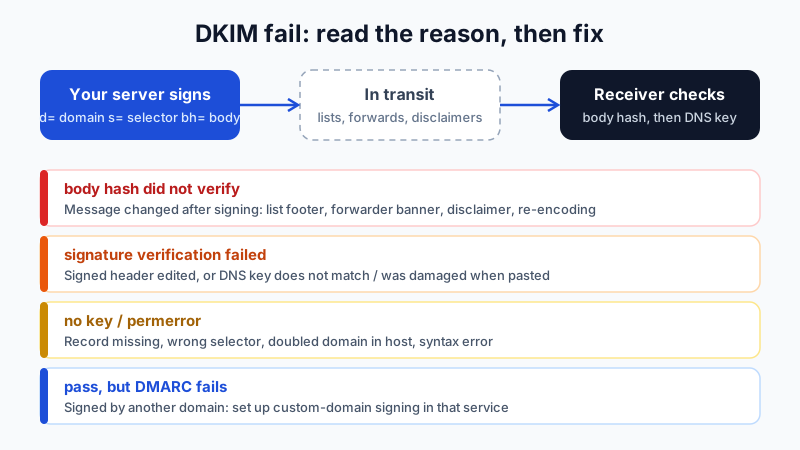
You open the headers of a message that went to spam, or a DMARC report, and see dkim=fail (body hash did not verify). Or maybe dkim=fail (signature verification failed), dkim=permerror (no key for signature), or dkim=temperror. They all say "DKIM failed", but each one points to a different cause and a different fix.
This guide explains what each DKIM result means, the usual causes behind each, and how to fix them. Most DKIM failures come from one of two things: the DNS record does not match what the sender signs with, or something changed the message after it was signed.
How DKIM verification works (30-second version)
When your mail server sends a message, it signs it. The signature (the DKIM-Signature header) contains:
- d= the signing domain, for example
yourcompany.com - s= the selector, which tells the receiver where to find the public key in DNS:
<selector>._domainkey.yourcompany.com - bh= the body hash, a fingerprint of the message body
- b= the signature itself, covering the body hash and a list of headers (From, Subject, Date and others, listed in h=)
The receiver does two checks. First it hashes the body it received and compares that with bh=. If they differ, you get body hash did not verify. Then it fetches the public key from DNS and checks b= over the signed headers. If that check fails, you get signature verification failed. If it cannot find a usable key at all, you get no key or a permerror.
If you want the background on how DKIM fits with SPF and DMARC, read SPF, DKIM and DMARC explained first.
Where to see the DKIM result
- Message headers: send a test to an outside mailbox, open "Show original" or "View source", and look for the
Authentication-Resultsheader. It showsdkim=passordkim=failwith a reason in brackets, plus theheader.d=andheader.s=it checked. - DMARC aggregate reports: each row shows the source IP, the DKIM domain and the result. This is the best way to find a failing sender you did not know about. See how to read DMARC aggregate reports in plain English.
Result 1: "body hash did not verify"
The key was found and is fine, but the body the receiver got is not the body that was signed. Something changed it on the way. Common causes:
- Mailing lists and group addresses that add a footer ("You received this because you are subscribed...") or rewrite the subject. The footer alone breaks the body hash.
- Forwarding through a service or rule that edits the message: adds a banner, rewrites links for click scanning, or adds a "this message was forwarded" note.
- Security gateways and disclaimers on the sending side that add a legal disclaimer or rewrite links after the message was already signed.
- Re-encoding: a server in the path converts 8-bit text to quoted-printable or changes line endings. The visible text looks identical, but the bytes are not.
- Scripts and apps that sign the message and then append something (tracking pixel, unsubscribe line) before handing it off.
How to fix it:
- Send a plain test from your normal mail app straight to an outside mailbox (no list, no forward). If that passes, your setup is fine and the change happens later in the path.
- If only messages through a mailing list or forwarder fail, that is expected behaviour for lists that modify mail. The list should re-sign with its own domain. Make sure SPF or DKIM still aligns for your own direct mail so DMARC passes there.
- If you add a disclaimer or link rewriting on your side, it must happen before signing, not after. Remove any step that edits outgoing mail after it leaves the signing server.
- For website forms and apps, send through your mailbox using authenticated SMTP and do not modify the message afterwards.
Result 2: "signature verification failed"
The body hash matched, but the signature over the headers did not check out against the public key. Causes:
- A signed header was changed in transit, most often the Subject (lists adding
[team]) or the From line being rewritten. - The DNS key does not match the private key used to sign. This happens when an old DKIM record is still published, or when someone copied the value from a different domain or a previous provider.
- The key was damaged when it was pasted. A missing character, an added space or line break in the middle of
p=, or quotes pasted inside the value all produce a key that loads but does not verify.
How to fix it: open your domain in the Mailbux dashboard under Manage → DNS and compare the DKIM record there with what is published, character for character. Long keys are often split into several quoted strings by DNS panels; that is fine as long as the joined value is exact. Re-paste the value if in doubt, then test again after the DNS change has propagated.
Result 3: "no key for signature" or permerror
The receiver looked up <selector>._domainkey.yourcompany.com and found nothing usable. Causes:
- The record was never added, or was added for the wrong host.
- The domain was doubled. Many DNS panels add your domain automatically, so entering
selector._domainkey.yourcompany.comas the host createsselector._domainkey.yourcompany.com.yourcompany.com. Enter only the part before your domain if your panel appends it. - Wrong selector. The selector must be exactly the one shown for your domain in Manage → DNS, not a generic one like
defaultorgooglecopied from an old guide. - Record type mistakes: created as something other than TXT, or a syntax error in the value (for example a missing
p=or a stray semicolon).
How to fix it: check the exact host name with a lookup tool. Our DKIM lookup tool guide shows how to query a selector and read the result. If the lookup returns nothing, fix the host; if it returns a value that differs from the dashboard, fix the value.
Result 4: temperror
A temporary DNS problem: the lookup timed out or the DNS server returned an error. If it happens once, ignore it. If it happens often, check that your DNS provider is answering reliably and that your domain's nameserver records are correct at the registrar.
Special case: DKIM passes, but DMARC still fails
A message can carry a valid DKIM signature from the wrong domain. A newsletter tool, CRM or invoicing app may sign with its own domain (d=sendingservice.example) while your From address is @yourcompany.com. DKIM passes, but it is not aligned with your From domain, so it does not count for DMARC. The fix is to set up that service to sign with your own domain (most offer a "custom domain" or "domain authentication" step that gives you extra DNS records), or to send that mail through your own mailbox instead.
Quick diagnosis table
- body hash did not verify → message changed after signing (list footer, forwarder, disclaimer, re-encoding)
- signature verification failed → signed header changed, or DNS key does not match / damaged when pasted
- no key / permerror → record missing, wrong host (doubled domain), wrong selector, syntax error
- temperror → DNS timeout; retry, check nameservers if it repeats
- pass but DMARC fails → signing domain is not your From domain; set up custom-domain signing in that service
The full record set for a Mailbux domain
DKIM rarely fails on its own. When you fix it, check the rest of the set too:
- MX:
my.mailbux.com, priority10 - SPF (TXT on @): one record that includes
include:msg25.com(merge with other senders; never publish two SPF records) - DKIM and DMARC: copy the exact host names and values from Manage → DNS for your domain
Mailbux generates the DKIM key for each domain you add, so you never have to create keys yourself. You only publish the record shown in the dashboard. Plans include unlimited business mailboxes (each mailbox uses at least 1 GB of plan storage), with mail stored on servers in the EU, US and Canada.
Checklist before you close the issue
- A direct test message to an outside mailbox shows
dkim=passwithheader.d=yourcompany.com - The DKIM host has no doubled domain and uses the selector from Manage → DNS
- No step edits outgoing mail after it is signed (disclaimers, link rewriting, appended footers)
- Every third-party sender either signs with your domain or sends through your mailbox
- Next week's DMARC reports show DKIM passing for all your own sources
Want email where DKIM is generated for you and the records are shown in one place? Create your Mailbux account, add your domain and copy the records from Manage → DNS.