
How to Recover Deleted Emails in a Business Mailbox
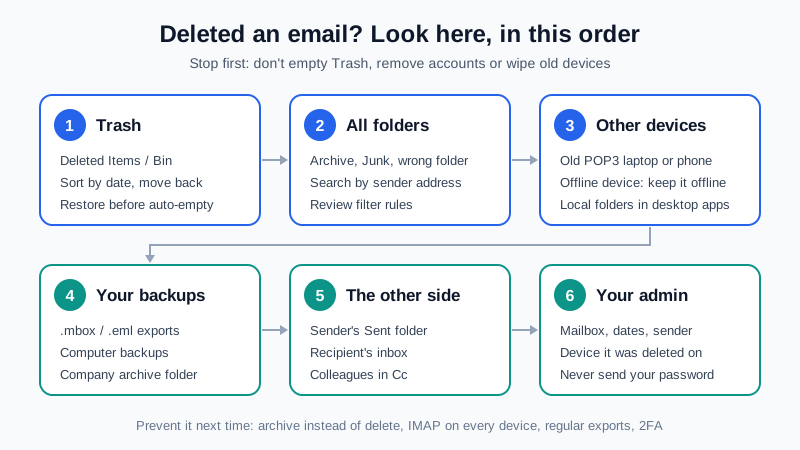
You cleaned up your inbox, and a minute later you realise the invoice, contract or customer thread you needed went with it. Or a colleague says an important message has "disappeared". Before you panic, know this: a deleted email is very often still somewhere you can reach. The trick is to look in the right places, in the right order, and to stop anything that could remove the last copy.
This guide walks through where deleted business email usually ends up, how to get it back, and how to set things up so the next accident costs you nothing.
Step 0: stop and don't make it worse
Until you have found the message, avoid the actions that make a deletion final:
- Don't empty Trash or run a "clean up mailbox" tool.
- Don't remove or reset an email account on a phone or desktop app. If that app holds the only local copy, removing the account deletes it.
- Don't wipe or hand in an old phone or laptop that used this mailbox until you have checked it.
- Write down what you are looking for: the sender, rough date, subject words and whether it had attachments. That makes every search below faster.
1. Check Trash (and Deleted Items) first
In almost every email app, "Delete" does not destroy a message. It moves it to Trash (some apps call it Deleted Items or Bin). Open that folder in webmail, sort by date, and look around the time you deleted it. To get it back, select the message and move it to Inbox or another folder.
Two things to know:
- Many apps and mail systems empty Trash automatically after a set number of days. If you think the message is there, restore it now rather than later.
- If you use an IMAP app, the app and webmail show the same Trash. If it is not in webmail's Trash, the app's Trash will not have it either, unless the app keeps local folders (see step 4).
2. It may not be deleted at all: search every folder
A message that "vanished" is often just somewhere unexpected. Check these before assuming it is gone:
- Archive. On many phones, a swipe archives instead of deleting. The message moves to an Archive folder and leaves the inbox.
- Junk or Spam. A filter may have moved a new reply there.
- A folder it was dragged into by accident. One slip with a mouse or trackpad can drop a message into any folder in the list.
- Filter rules. A rule can move, forward or delete mail automatically, and you may have forgotten you made it. Review your rules, especially any that use "delete" or "move to folder".
Use webmail search with "all folders" selected, and search by sender address or a distinctive word rather than the full subject. Desktop apps sometimes search only messages they have already downloaded, so webmail search is the more reliable test.
3. Find out if someone else deleted it
If several messages disappeared, especially recent ones, or replies to a thread are missing, don't treat it as a simple accident. People who break into a mailbox often delete messages they sent and add rules that hide or forward incoming mail. Signs include sent mail you did not write, new forwarding or filter rules, and password prompts you didn't expect. If you see any of these, follow our hacked email account recovery steps first, then come back to recovering the messages.
Also check that the message ever arrived. A "deleted" email is sometimes one that was never delivered. If the sender says they sent it and you have never seen it, our guide on email sent but not received covers the checks on their side.
4. Look for a copy on another device
How your apps connect decides whether a copy might still exist somewhere:
| Connection | What happens on delete | Where a copy may survive |
|---|---|---|
| Webmail | Moves to Trash on the server | Trash, then other devices or backups |
| IMAP app | Synced with the server, so the delete shows on every device | Local folders ("On My Mac", "Local Folders"), an offline device not synced since |
| POP3 app | Messages are downloaded to that device; the server copy may already be gone | On the computer or phone that downloaded it |
So check:
- An old laptop or desktop app that used POP3. It may hold years of mail that the server no longer has.
- A device that has been offline. A phone in airplane mode or a laptop that has been shut down may still show the message. Before connecting it to the internet, turn off its network, find the message, and copy or forward it out once you are ready. Otherwise the next sync may remove it.
- Local folders in desktop apps, which never sync to the server.
Not sure which protocol your apps use? Our guide to IMAP vs POP3 explains the difference and how to check. On Mailbux, IMAP/POP3 sign-in needs a paid plan; Free uses webmail, the Mailbux apps and SMTP.
5. Restore from your own backup or export
If you or your IT person keep backups, this is where they pay off. Look for:
- Export files such as
.mboxor.emlfiles saved from a mail app, or a yearly export of the mailbox. - Computer backups that include a desktop email app's data folder.
- An archive mailbox or folder your company copies important mail into.
An .mbox or .eml file can be opened in a desktop app and the message copied back into your mailbox. If you have no backup today, read email backup strategies for small businesses once this is sorted.
6. Ask the other side for a copy
Every email has at least two copies: yours and the other person's. If you deleted a message from a customer or supplier, they still have it in their Sent folder. If you deleted something you sent, the recipient still has it. A short, polite request ("could you forward me your email from 14 October about the invoice?") is often the fastest recovery there is. Colleagues who were copied in may also have it.
7. Ask your email administrator
If none of the above works, contact whoever runs your company email. They can check the mailbox, the filter rules and any archive the company keeps. If you run a Mailbux account yourself, open a support ticket from your dashboard and include:
- the mailbox address
- roughly when the message arrived and when it was deleted
- the sender and a few words from the subject
- which device or app it was deleted from
Never include your password in a ticket. Support never needs it.
How to make the next deletion harmless
- Archive instead of delete. Business mail you might need again (invoices, contracts, approvals) belongs in an Archive folder, not Trash.
- Use IMAP on every device. Then one server holds the full mailbox and no laptop becomes the only copy.
- Keep a regular export of mailboxes that hold records you must keep, and test that it opens.
- Check rules now and then. Remove old rules that delete or move mail.
- Turn on two-factor authentication so a stolen password is not enough for someone to sign in and clean out the mailbox.
- Have an offboarding routine. When someone leaves, keep their mailbox or an export before deleting anything.
Quick checklist
- ☐ Trash left alone, no accounts removed, no devices wiped
- ☐ Trash / Deleted Items checked in webmail, message moved back
- ☐ All-folder search done: Archive, Junk, other folders
- ☐ Filter rules reviewed
- ☐ No signs of someone else in the account
- ☐ Old POP3 devices, offline devices and local folders checked
- ☐ Backups and export files checked
- ☐ Sender, recipient or colleagues asked for a copy
- ☐ Administrator or support contacted with the details
Business email you stay in control of
Mailbux gives you business email on your own domain, with webmail, the Mailbux apps and standard IMAP and SMTP settings for phone and desktop apps. From one dashboard you manage mailboxes, filter rules, app passwords and two-factor authentication. DKIM is set up automatically, and the exact MX, SPF, DKIM and DMARC values for each domain are listed under Domains → Open DNS setup. See the plans on our pricing page.