
Email Attachment Size Limits: Why Files Bounce and How to Send Large Files
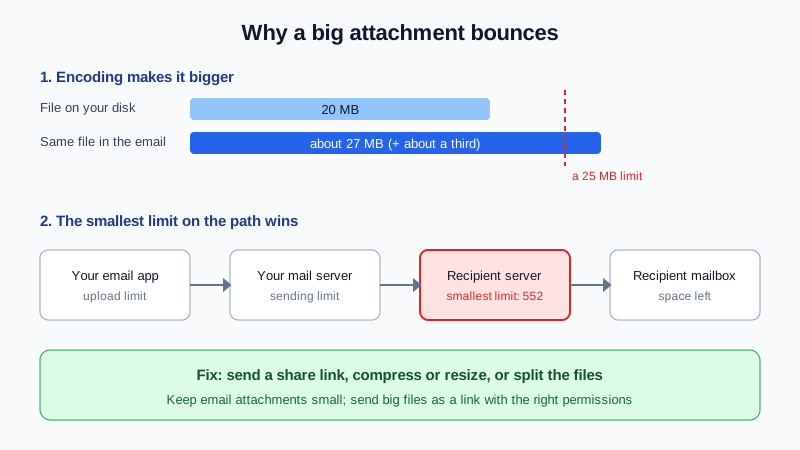
You attach a 20 MB presentation, press Send, and a few minutes later a bounce arrives: 552 5.3.4 Message too big. The file was under the 25 MB limit you have heard about, so what went wrong? Two things almost always: the file grows on its way into the email, and the limit that matters is not yours but the smallest one anywhere between you and the recipient.
This guide explains how email attachment size limits really work, how to read the bounce, and the reliable ways to send large files instead.
The short answer
- The size that counts is the whole message: text, signature images and every attachment together.
- Attachments are encoded for sending, which makes them about a third larger than the file on your disk.
- Every server on the path can set its own maximum. The smallest limit wins, and you usually cannot see the recipient's.
- For anything big, send a share link instead of an attachment. It is faster, it cannot bounce for size, and you can revoke it later.
Why a 20 MB file becomes a 27 MB email
Email was designed for text. To carry a PDF, photo or spreadsheet, your email app converts the binary file into plain text characters using an encoding called Base64. Base64 turns every 3 bytes into 4 characters and then splits the result into short lines, so the attached file ends up roughly 33–37% larger than the original. Mail server documentation warns about exactly this: a size limit is applied to the encoded message, not to the file you picked.
| File size on your computer | Approximate size inside the email |
|---|---|
| 5 MB | about 7 MB |
| 10 MB | about 14 MB |
| 15 MB | about 21 MB |
| 18 MB | about 25 MB |
| 20 MB | about 27 MB |
A practical rule of thumb: keep the total of all attachments under about 70% of the stated limit. If a provider says 25 MB, plan for roughly 18 MB of real files at most.
The smallest limit on the path decides
A message passes through several places, and each can refuse it:
- Your email app or webmail. Some apps stop you at upload time or quietly offer to turn the file into a link. Google, for example, states a 25 MB attachment limit for personal Gmail accounts and converts larger files into a Drive link automatically.
- Your outgoing mail server. It has a maximum message size for sending.
- The recipient's mail server. It has its own maximum, set by whoever runs it. Company mail systems are often configured by an IT admin, and the value can be lower or higher than yours. Many servers announce this limit at the start of the connection, so an oversized message is refused before it is even transferred.
- The recipient's mailbox. Even if the size is allowed, a full mailbox cannot accept it.
This is why the same file can go through to one client and bounce at another. You did nothing different; the receiving side simply has a lower ceiling.
What the bounce messages mean
| Code in the bounce | Meaning | What to do |
|---|---|---|
552 5.3.4 | Message too big for the receiving system. | Send a share link, or make the files smaller. |
552 5.2.3 | Message length exceeds an administrative limit set on the receiving side. | Same as above. The limit is the recipient's policy, so resending will not help. |
552 5.2.2 | The recipient's mailbox is full. Not a size limit on your message. | Tell the recipient through another channel, or try later. |
These are permanent failures (they start with 5), so the server will not retry. For the full list of permanent codes, see our guide to SMTP 550 bounce codes. If instead you get a warning that delivery is "delayed", that is a temporary problem and a different story, covered in what a delayed delivery warning means.
Sometimes there is no bounce at all: the message just sits in your Outbox. A large upload over a slow or unstable connection (a phone on mobile data, hotel Wi-Fi) can time out again and again. Remove the attachment, send a link instead, and the message usually leaves at once.
Five ways to send large files reliably
1. Send a share link (best for anything big)
Upload the file to the cloud storage your business already uses and paste the link into the email. The email stays tiny, the recipient downloads at full speed, and you control access:
- Share with specific people rather than "anyone with the link" when the file is confidential.
- Set an expiry date if your storage supports it, and remove access when the project ends.
- Say in the email what the link is ("Signed contract, PDF, 40 MB") so it does not look like a phishing link.
2. Compress the right kind of files
Zipping a folder of Word documents, spreadsheets or text files often saves a lot. Zipping photos, videos, MP3s or most PDFs saves almost nothing, because those formats are already compressed. Some recipients' filters also treat password-protected archives with suspicion, so do not rely on them for delivery.
3. Resize images and slim down PDFs
A photo straight from a phone is often several megabytes; a version sized for a screen is a fraction of that. Most phones and computers offer a "smaller size" option when sharing or exporting. For PDFs, use the "reduce file size" or "optimise" export option in your PDF tool, especially for scanned documents.
4. Split across several emails (last resort)
Sending part 1, part 2 and part 3 works, but it is easy for the recipient to miss one, and every part still has to pass the same limits. Prefer a link.
5. Watch out for replies and forwards
Forwarding a message with its attachments, or replying to a thread where someone kept attaching files, adds them all to the new message. If a forward bounces for size, forward it without the attachments and share the files separately.
When someone cannot send a file to you
If a client tells you their email to you bounced for size, ask them for a share link instead; your server's limit applies to everyone sending to you. If the bounce says the mailbox is full (5.2.2), free up space or review how much storage each person needs: our guide on email storage for business explains how to estimate it. Large attachments are also the fastest way to fill a mailbox, which is one more reason to keep files in storage and send links.
Large files and security
Attachments sit in every copy of the message: your Sent folder, the recipient's inbox, their phone and any backups. A link can be revoked; an attachment cannot. For contracts, ID scans or financial data, a link restricted to named people is the safer choice. And because attackers also send "shared file" links, train your team to check where a link really points before signing in anywhere. Our phishing prevention guide covers the warning signs.
Quick checklist
- Add up all attachments, then multiply by about 1.37 for the real email size.
- Over roughly 18 MB in total? Use a share link.
- Bounce with 5.3.4 or 5.2.3: the receiving side's limit. Do not resend; send a link.
- Bounce with 5.2.2: the recipient's mailbox is full.
- Stuck in the Outbox: remove the attachment and send a link.
- Confidential file: link shared with named people, with an expiry.
Need the exact message size limit on your own mailbox? Ask our support team from your dashboard and we will confirm it for your account.
Professional email on your own domain
Mailbux gives your team email on your own domain with webmail and mobile apps, two-factor authentication and app passwords for every device, and copy-and-paste SPF, DKIM and DMARC values under Domains → Open DNS setup. Compare the options on our pricing page.