
Email App Keeps Asking for Your Password? 7 Causes and Fixes
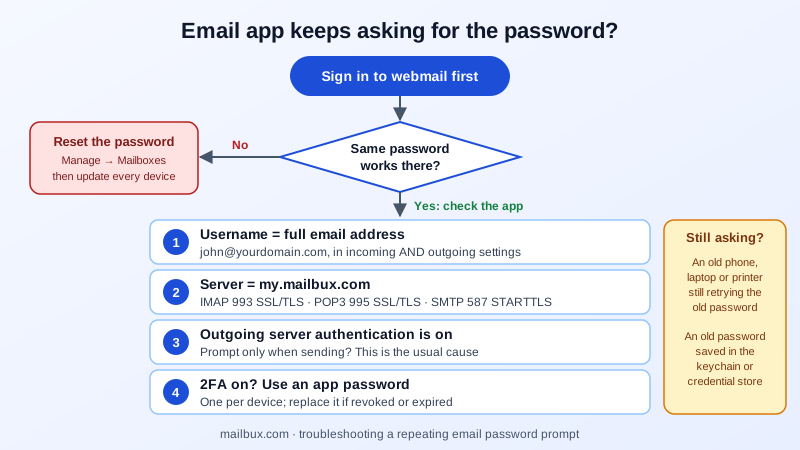
You type your email password, the app accepts it for a minute, and then the same box pops up again. Or it never accepts it at all, even though you are sure the password is right, because webmail opens fine with it. This is one of the most common email problems on phones and desktop apps, and it is almost never a mystery once you know where to look.
A repeating password prompt means one thing: the app tried to sign in and the mail server said no. The password you typed may be correct. What is wrong is usually something next to it: the username, the server name, the outgoing settings, two-factor authentication, or another device that is still using an old password. This guide goes through the causes in the order that solves most cases fastest.
First, a 2-minute test
Before changing anything in the app, sign in to webmail with the same address and password.
- Webmail fails too: the password really is wrong, or the account is blocked. Reset it (see the last section) and then update every device.
- Webmail works: the password is fine. The problem is in the app's settings or in how the app signs in. Keep reading.
Also note when the prompt appears. If it shows up only when you send, look at the outgoing server settings. If it appears when mail is being fetched, look at the incoming settings. If it started right after you or a colleague changed the password, look for an old device first.
Cause 1: The username is not the full email address
Many apps fill in the username for you, and they often get it wrong. They put in only the part before the @, or a display name, or an old address. For Mailbux the username is always your full email address, for example [email protected], not just john.
Check it twice: once in the incoming (IMAP or POP3) settings and once in the outgoing (SMTP) settings. Apps keep them separately, and it is common for one to be right and the other wrong.
Cause 2: The server name or port is wrong
If an app guessed the settings, it may be trying a server that does not know your account, such as mail.yourdomain.com or imap.yourdomain.com. That server either refuses the password or shows a certificate warning first.
The Mailbux values are the same for every customer:
| Setting | Server | Port | Security |
|---|---|---|---|
| IMAP (incoming) | my.mailbux.com | 993 | SSL/TLS |
| POP3 (incoming) | my.mailbux.com | 995 | SSL/TLS |
| SMTP (outgoing) | my.mailbux.com | 587 | STARTTLS |
The full list, with the username and authentication rules, is in our IMAP, SMTP and POP3 settings guide. Note from that page: IMAP/POP3 sign-in needs a paid plan; Free uses webmail, the Mailbux apps and SMTP. If you are on Free, an IMAP app will keep asking for the password however many times you type it, so use webmail or the Mailbux apps instead.
Cause 3: The outgoing server has no password, or an old one
This is the classic case of "I can receive but every time I send, it asks for my password". The outgoing server needs to sign in too. In most apps there is a setting such as "My outgoing server requires authentication" or "Use same settings as incoming server". If it is off, or the outgoing password field still holds an old password, sending fails and the prompt comes back.
Open the account's outgoing (SMTP) settings, turn authentication on, enter the full email address as the username and the current password, and send a test message to yourself.
Cause 4: Two-factor authentication is on
When two-factor authentication is on, most mail apps cannot show you the one-time code screen. They send only a username and password, and the server needs more than that. The result looks exactly like a wrong password.
The fix is an app password: a separate, generated password for one app on one device. Create one in Mailbux webmail under Settings → Security → App Passwords, or an admin can issue one in the dashboard under Manage → App Passwords. Paste it into the app's password field (incoming and outgoing) instead of your normal password. You see it only once, so set the app up straight away.
App passwords can also be the cause rather than the fix. If one was revoked, or it was created with an expiry date or a list of allowed IP addresses, the app that uses it will start asking for a password once it expires or when you connect from another network. Create a new one for that device. Our two-factor authentication guide covers setup step by step.
Cause 5: Another device still has the old password
If the prompt started for several people at once, or right after a password change, the cause is often not on the device showing the prompt. An old phone, a home laptop or a scan-to-email printer that still has the old password keeps retrying it. To a mail server, many failed sign-ins in a row from one place look like someone guessing passwords, so the connection can be blocked for a while as a security measure. Every device behind the same internet connection is then affected, even the ones with the right password.
Find the device that is still using the old password and update or switch it off. Once the failed attempts stop, normal sign-ins work again. Our guide to changing a business email password on all devices has a full list of the places people forget.
Cause 6: The device has saved an old password somewhere else
Some systems keep the email password outside the mail app. You type the new password in the app, but the system keeps offering the old saved one.
- iPhone and iPad: remove the password in the account settings in the Mail section of the Settings app and enter it again. If that does not help, delete the account from the device and add it again with the settings above. Mail stays on the server with IMAP.
- Mac: open Keychain Access, search for
my.mailbux.com, and delete old entries for your address. Mail will ask for the password once and save the new one. - Windows with Outlook: open Credential Manager from the Control Panel, choose Windows Credentials, and remove saved entries for your email address or
my.mailbux.com. Then open Outlook and enter the current password when asked. - Thunderbird: open Settings, then Privacy & Security, then Saved Passwords, and remove the entries for your address. Thunderbird asks again on the next check.
- Android: in your email app, open the account settings and update the password for both incoming and outgoing. If the field cannot be edited, remove the account and add it again.
Cause 7: The account itself is the problem
If webmail also refuses the password, the mailbox may have been suspended by your company's admin, or the password was changed by someone else. If you run the account, sign in to the dashboard and check the mailbox under Manage → Mailboxes. If someone else runs it, ask them. If you see signs that another person used the account, such as sent mail you did not write, follow our hacked email account recovery steps instead of just typing the password again.
How to reset the password and stop the prompts for good
- In the Mailbux dashboard, open Manage → Mailboxes, open the mailbox actions and choose Change password. You do not need the old password. Passwords must be 12 to 128 characters.
- Update every device the same hour, incoming and outgoing, starting with the phone.
- If two-factor authentication is on, give each mail app its own app password and revoke the ones you no longer use under Manage → App Passwords.
- Send a test message from each device.
If every device has the right username, server and password and the prompt still comes back, open a support ticket from your dashboard. Tell us which app and device show the prompt, and whether it appears when sending, receiving or both. Never send your password in the ticket. We never need it.
Quick checklist
- ☐ Webmail works with the same address and password
- ☐ Username is the full email address, incoming and outgoing
- ☐ Server is my.mailbux.com with the ports above
- ☐ Outgoing server authentication is on
- ☐ App password used if two-factor authentication is on, and it has not expired or been revoked
- ☐ No old phone, laptop or printer still trying the old password
- ☐ Old saved passwords removed from the keychain or credential store
Business email that works on every device
Mailbux gives you business email on your own domain, with webmail, the Mailbux apps and standard IMAP and SMTP settings for phone and desktop apps. From one dashboard you can change mailbox passwords, issue and revoke app passwords for each device, and turn on two-factor authentication. DKIM is set up automatically, and the exact MX, SPF, DKIM and DMARC values for each domain are listed under Domains → Open DNS setup. See the plans on our pricing page.