
How to Read DMARC Aggregate Reports (in Plain English)
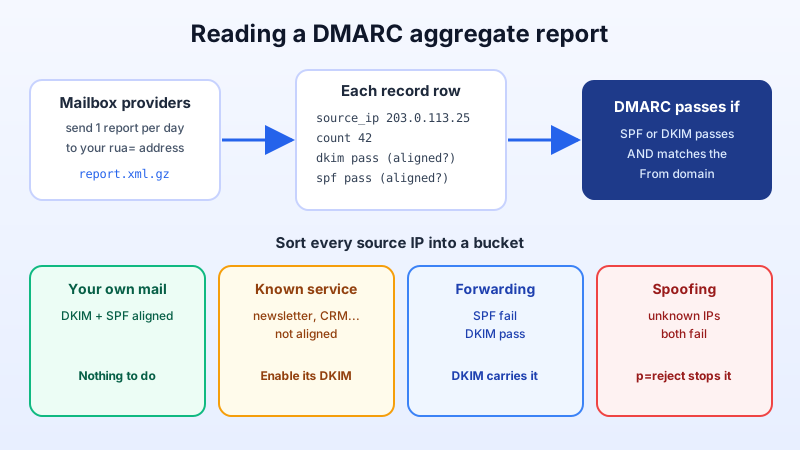
You published a DMARC record with a rua= address, and now a mailbox fills up with attachments named something like google.com!yourdomain.com!1760054400!1760140799.xml.gz. Those are DMARC aggregate reports. They show who is sending mail with your domain in the From address, and whether that mail passed SPF and DKIM. This guide explains how to read one in plain English, what each result means, and how to use the reports to move your policy from monitoring to enforcement safely.
What an aggregate report is (and isn't)
When you add a DMARC record such as v=DMARC1; p=none; rua=mailto:[email protected], you ask receiving mail systems to send you a daily summary. Each large mailbox provider that saw mail claiming to be from your domain sends one report per day, usually as a compressed XML file (.xml.gz or .zip).
- It is a summary, not a copy of your mail. Reports list sending IP addresses, message counts and authentication results. They contain no subjects, bodies or recipient addresses.
- It covers everyone using your domain: your own mailboxes, your newsletter or invoicing tools, forwarders, and anyone spoofing you.
- Not every receiver sends them. Large providers do; many small servers don't. Treat reports as a strong sample, not a complete census.
The four parts of a report
Open the XML in any text editor (or a browser). Every report has the same structure:
<feedback>
  <report_metadata>
    <org_name>google.com</org_name>
    <date_range><begin>1760054400</begin><end>1760140799</end></date_range>
  </report_metadata>
  <policy_published>
    <domain>yourdomain.com</domain>
    <adkim>r</adkim><aspf>r</aspf>
    <p>none</p><pct>100</pct>
  </policy_published>
  <record>
    <row>
      <source_ip>203.0.113.25</source_ip>
      <count>42</count>
      <policy_evaluated>
        <disposition>none</disposition>
        <dkim>pass</dkim><spf>pass</spf>
      </policy_evaluated>
    </row>
    <identifiers><header_from>yourdomain.com</header_from></identifiers>
    <auth_results>
      <dkim><domain>yourdomain.com</domain><result>pass</result></dkim>
      <spf><domain>yourdomain.com</domain><result>pass</result></spf>
    </auth_results>
  </record>
</feedback>- report_metadata — who sent the report (
org_name) and the period it covers. The dates are Unix timestamps; any online epoch converter turns them into normal dates. - policy_published — the DMARC record the receiver saw for your domain. Check this first: if it doesn't match what you think you published, fix DNS before reading anything else.
- record — one block per sending IP (and result combination).
countis how many messages came from that IP in the period. - auth_results — the raw SPF and DKIM results, including which domain each check was done for.
The one concept that matters: alignment
DMARC passes when at least one of SPF or DKIM passes and is aligned with the domain in the visible From address (header_from).
- SPF aligned: the domain checked by SPF (the envelope sender, shown in
auth_results/spf/domain) matches your From domain. - DKIM aligned: the
d=domain of a valid DKIM signature (shown inauth_results/dkim/domain) matches your From domain.
With relaxed alignment (adkim=r, aspf=r, the default), a subdomain such as mail.yourdomain.com counts as a match. This is why auth_results can say spf pass while policy_evaluated says spf fail: SPF passed, but for a different domain — typically a third-party tool's own bounce domain. The policy_evaluated values are the ones DMARC actually used.
Sort every source into one of four buckets
Go through the records, largest count first, and put each source IP into a bucket. A reverse-DNS or IP lookup tells you who owns an address.
| What you see | What it usually means | What to do |
|---|---|---|
| DKIM pass + SPF pass, both aligned | Your own mail, set up correctly | Nothing. This should be most of your volume. |
| A service you recognise (newsletter, CRM, helpdesk, invoicing) failing alignment | A legitimate sender that isn't authorised yet | Turn on custom-domain DKIM in that service and, if it sends with your envelope domain, add its include to your single SPF record. |
| SPF fail, DKIM pass | Usually forwarding: a recipient's server forwarded your message on, so the IP changed but the signature survived | Nothing — DKIM alignment carries DMARC. This is why DKIM matters. |
| Unknown IPs, both fail, often from unexpected countries | Spoofing — someone forging your domain | This is exactly what p=quarantine and p=reject stop. |
Checking your Mailbux mail in the report
Mail sent from your Mailbux mailboxes should appear with DKIM pass for your own domain and SPF pass, once your records match the values shown in your dashboard under Manage → DNS: MX my.mailbux.com at priority 10, an SPF record containing include:msg25.com, plus the DKIM and DMARC records listed there for your domain. If your own volume shows failures, check those records first — DNS Records for Business Email: MX, SPF, DKIM, and DMARC walks through each one, and the dashboard turns each record green once it is live.
A very common cause of SPF failures in reports is having two SPF TXT records on the same domain, which makes SPF fail for everyone. If that's you, see how to merge multiple SPF records into one.
From p=none to p=reject without losing mail
- Monitor (p=none) for 2–4 weeks. Collect reports and work through the buckets until every legitimate sender passes aligned.
- Quarantine. Change to
p=quarantine. Failing mail goes to spam instead of the inbox. Watch the reports for a legitimate source you missed — it will now showdisposition: quarantine. - Reject. When reports show only spoofing in the failing rows for several weeks, move to
p=reject. Forged mail using your domain is then refused outright.
Change one thing at a time and give each step at least a week of reports before the next.
Practical tips
- Use a dedicated address for
rua, such as[email protected], so reports don't clutter a personal inbox. A busy domain can receive dozens of reports a day. - Sending reports to another domain (for example a report-analysis service) requires that domain to publish an authorisation record; without it, receivers may not deliver the reports.
- Don't open reports from unexpected senders claiming urgent action. Real reports are plain data files from mailbox providers; you never need to click a link inside them.
- Use a parser for volume. Reading XML by hand is fine for a small domain. For many domains, a report-visualisation tool saves time — the buckets above still apply.
For the background on how the three records work together, see SPF, DKIM and DMARC explained, and if legitimate mail is landing in spam, follow our spam troubleshooting guide.
Want email on your own domain with authentication values ready to copy? Mailbux gives you unlimited business mailboxes (each mailbox uses at least 1 GB of your plan's storage), on servers in the EU, US and Canada. Start free.